

Before choosing a shift pattern, ask a practical question: who covers each required period when someone is off? A roster may look balanced across a fortnight and still leave a night uncovered on one particular date. That is why these rotating shift schedule Excel templates show coverage counts directly beneath the assignments.
The five editable downloads include a two-day/two-night rotation, a 2-2-3 roster, a four-on/four-off schedule, a three-shift rotation, and a flexible manual planner. Each displays fourteen dates, four example teams, coded assignments, calculated scheduled hours, and a coverage review. The previews show the real workbook layouts, including example gaps where the flexible plan still needs adjustment.
These are planning patterns for teams. They do not verify individual qualifications, paid breaks, absence cover, overtime eligibility, or compliance with local rules. Use the schedule alongside your staffing requirements and approval process before issuing it to employees.
Jump to a template preview
Shift coverage check
Check the staffing gap for a single shift before reviewing the full rotation.
Worked example: Qualified staff needed: 5; Assigned qualified staff: 6; Unavailable assigned staff: 2 → Available staff: 4; Open positions: 1.
Repeat for each shift and skill group. A headcount check does not assess rest, overtime, or individual qualifications.
Related template: 5 Production Schedule Excel Templates for Small Manufacturers
Read the roster before editing it
Every file uses the same short codes: D for day, E for evening, N for night, and O for off. Dropdown lists help keep those codes consistent. The date row follows the start-date input, and the hours calculation counts assigned working shifts using the entered hours per shift.
The sample twelve-hour patterns require day and night coverage. The eight-hour patterns check day, evening, and night coverage. The review asks whether at least one team is assigned to each required period. It does not count how many people belong to a team or whether those people have the right skills.
For example, a “Covered” result may represent one team of two people when the operation actually requires four qualified workers. Define staffing needs separately and check them against the people assigned. Treat the coverage row as an early check, not a final staffing approval.
Option 1: Four-crew two-day/two-night rotation
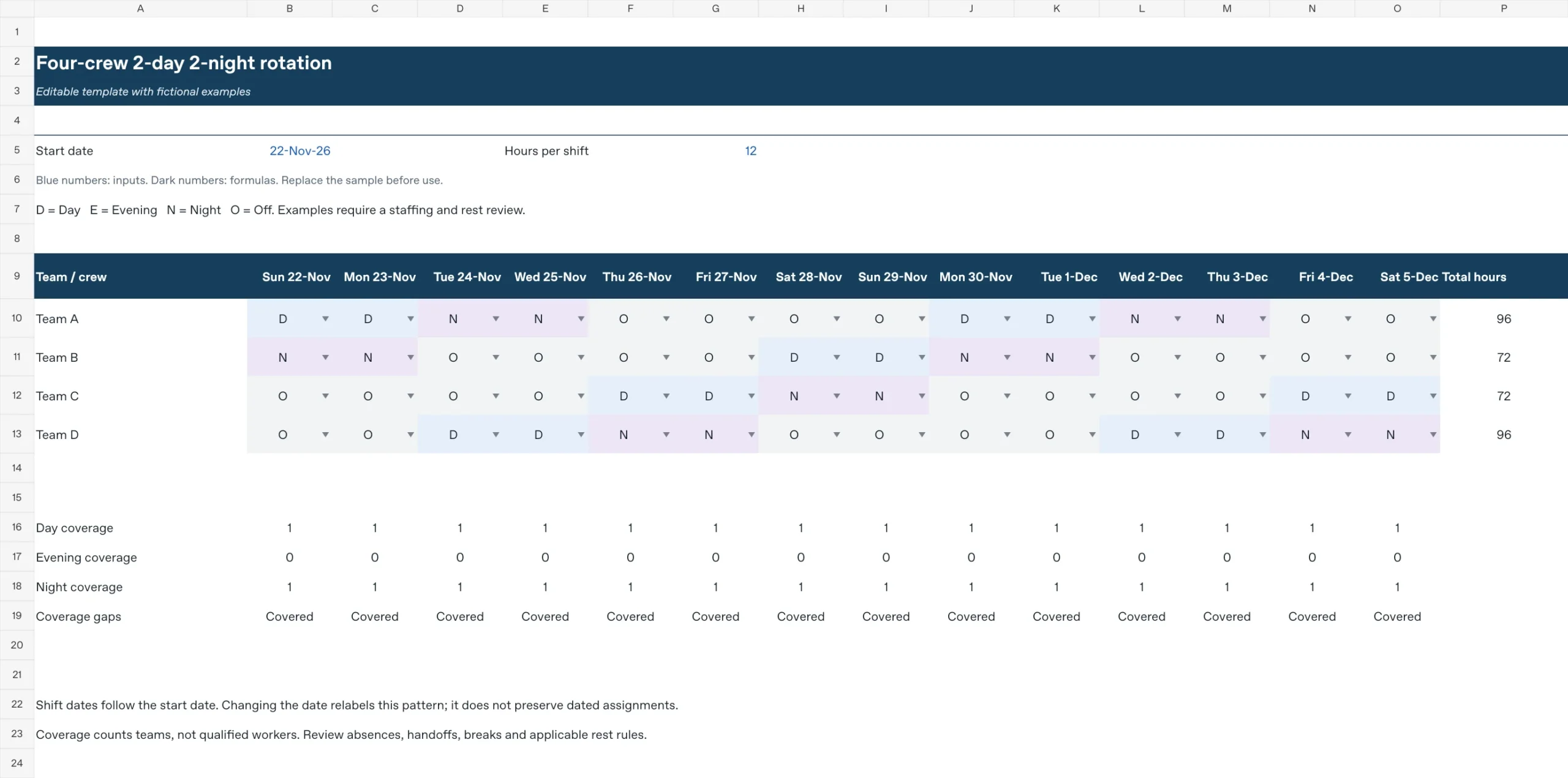
Download Four-crew 2-day 2-night rotation (.xlsx)
The navy schedule uses a repeating sequence of two day shifts, two night shifts, and four days off. Four crews start at different points in that sequence. The example provides day and night team coverage across the displayed fortnight, with shift codes coloured for quick scanning.
This layout is useful when a manager wants to inspect how an eight-day cycle falls across a fourteen-day reporting window. Because the two periods do not align, individual teams can have different total hours within that particular window. The totals describe the displayed dates, not a universal weekly average.
Review the transition between day and night assignments, the exact start and end times, and the next rotation beyond the visible fortnight. A pattern should be evaluated across its full cycle, including the boundary between one saved schedule and the next.
Option 2: Two-week 2-2-3 coverage roster
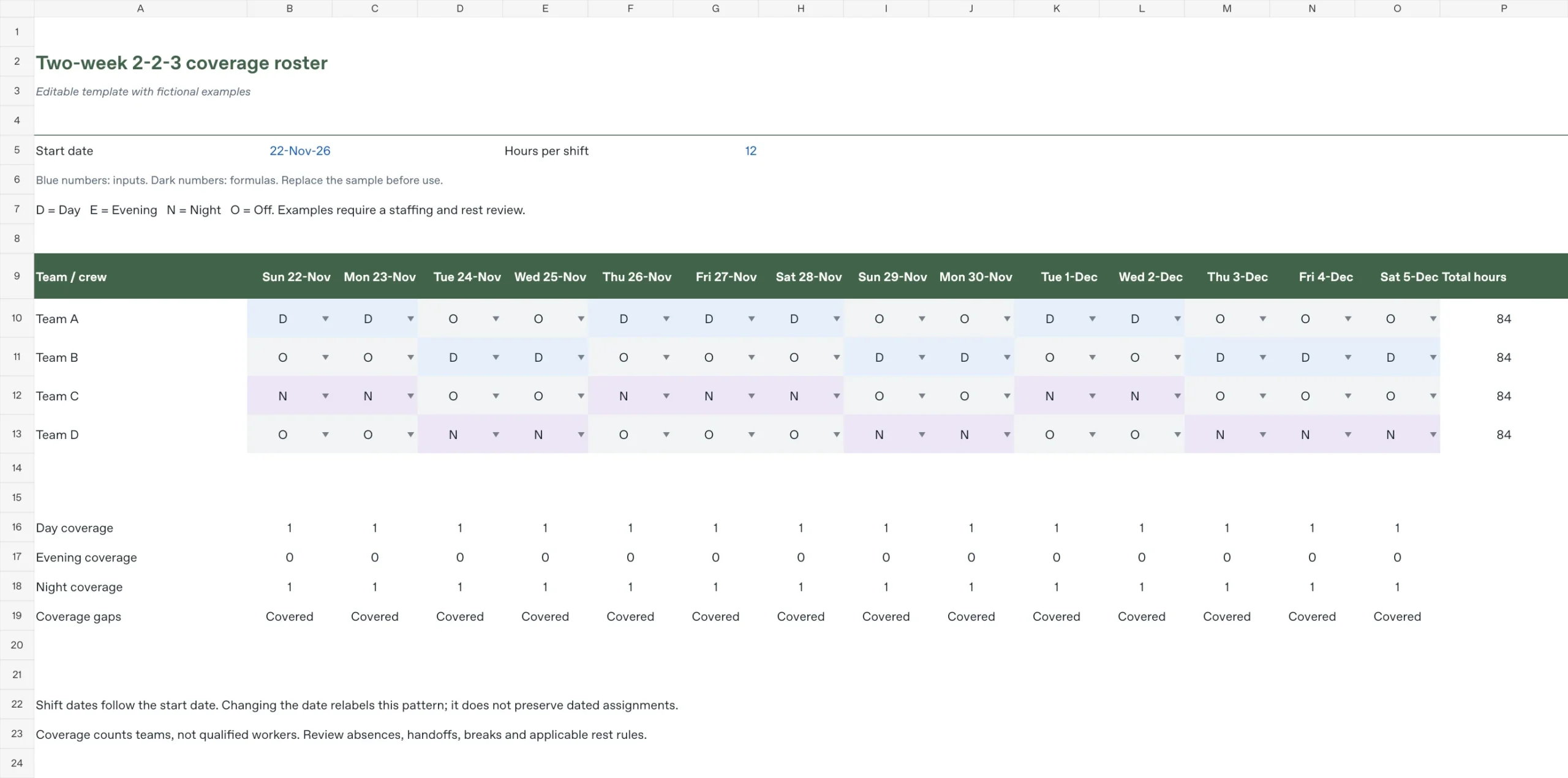
Download Two-week 2-2-3 coverage roster (.xlsx)
The sage version uses a fourteen-day on/off pattern commonly described by its two, two, and three-day blocks. Two example crews provide day coverage and two provide night coverage. Each team works seven shifts in the displayed sample, giving 84 scheduled hours when the shift-length input is twelve.
The file is useful for discussing alternating work blocks and weekends with a team. Its clear fortnight view makes the pattern easy to check against leave requests and known operational events before individual names are assigned.
The example keeps crews on their shown day or night designation during this fortnight. It does not automatically swap day and night crews in later cycles. If your policy includes that change, plan the transition explicitly and review the resulting rest periods before copying the next schedule.
Option 3: Four-on/four-off team schedule
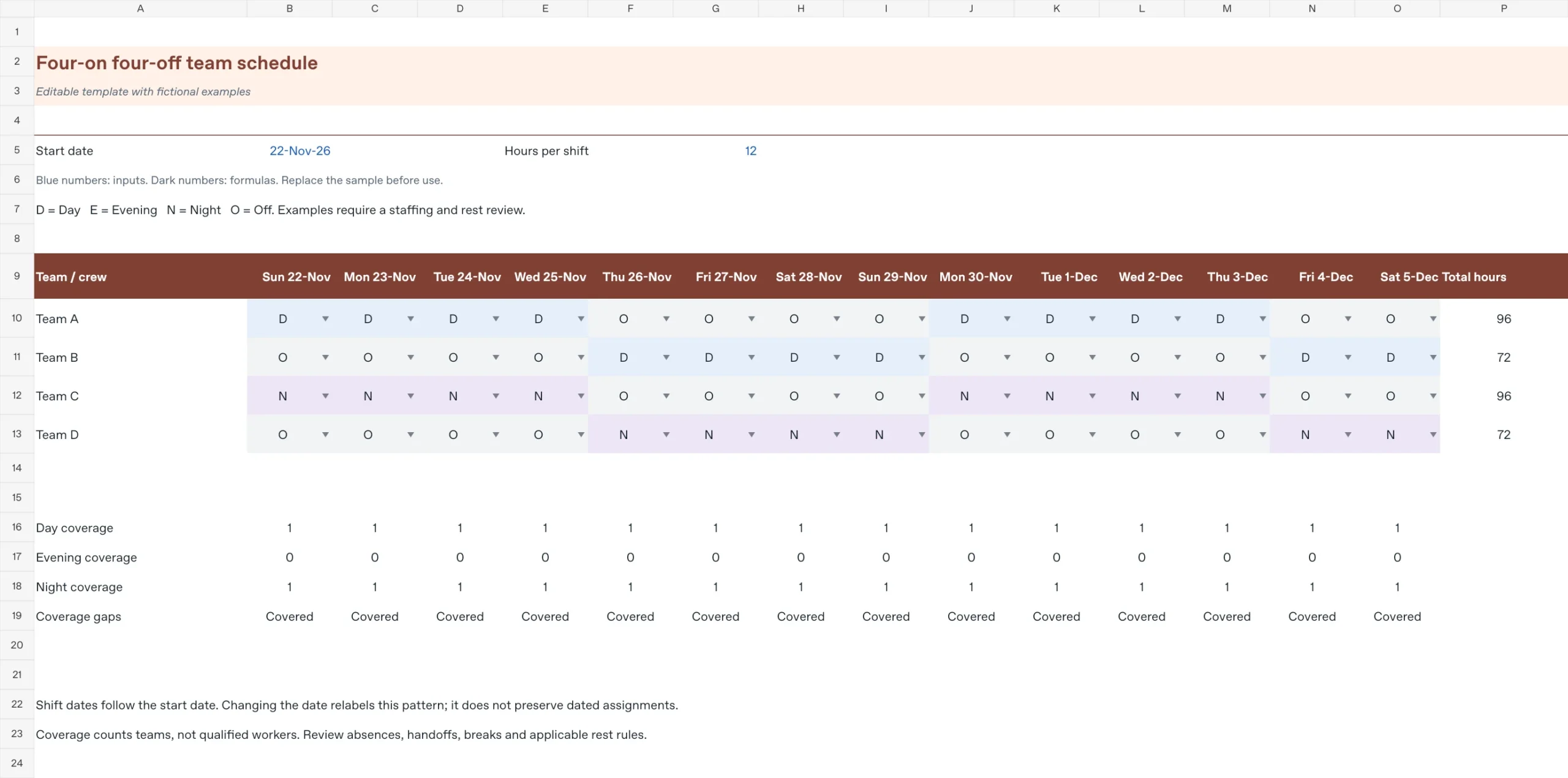
Download Four-on four-off team schedule (.xlsx)
The terracotta schedule groups four working shifts followed by four off days. The sample uses two day crews and two night crews at different offsets to maintain the displayed coverage. The stronger warm header helps distinguish this roster from the other patterns when several alternatives are being reviewed.
An eight-day cycle moves through the calendar rather than repeating on the same weekdays every week. That is useful to make visible when staff are comparing the roster with recurring personal commitments or when managers are forecasting weekend staffing.
Check consecutive hours and the exact handover arrangement before adopting the pattern. Four entries marked D do not explain whether the shift includes briefing time, whether a relief worker is needed for breaks, or what happens when a crew member is absent. Add those operational details to the approved staffing plan.
Option 4: Forward three-shift rotation
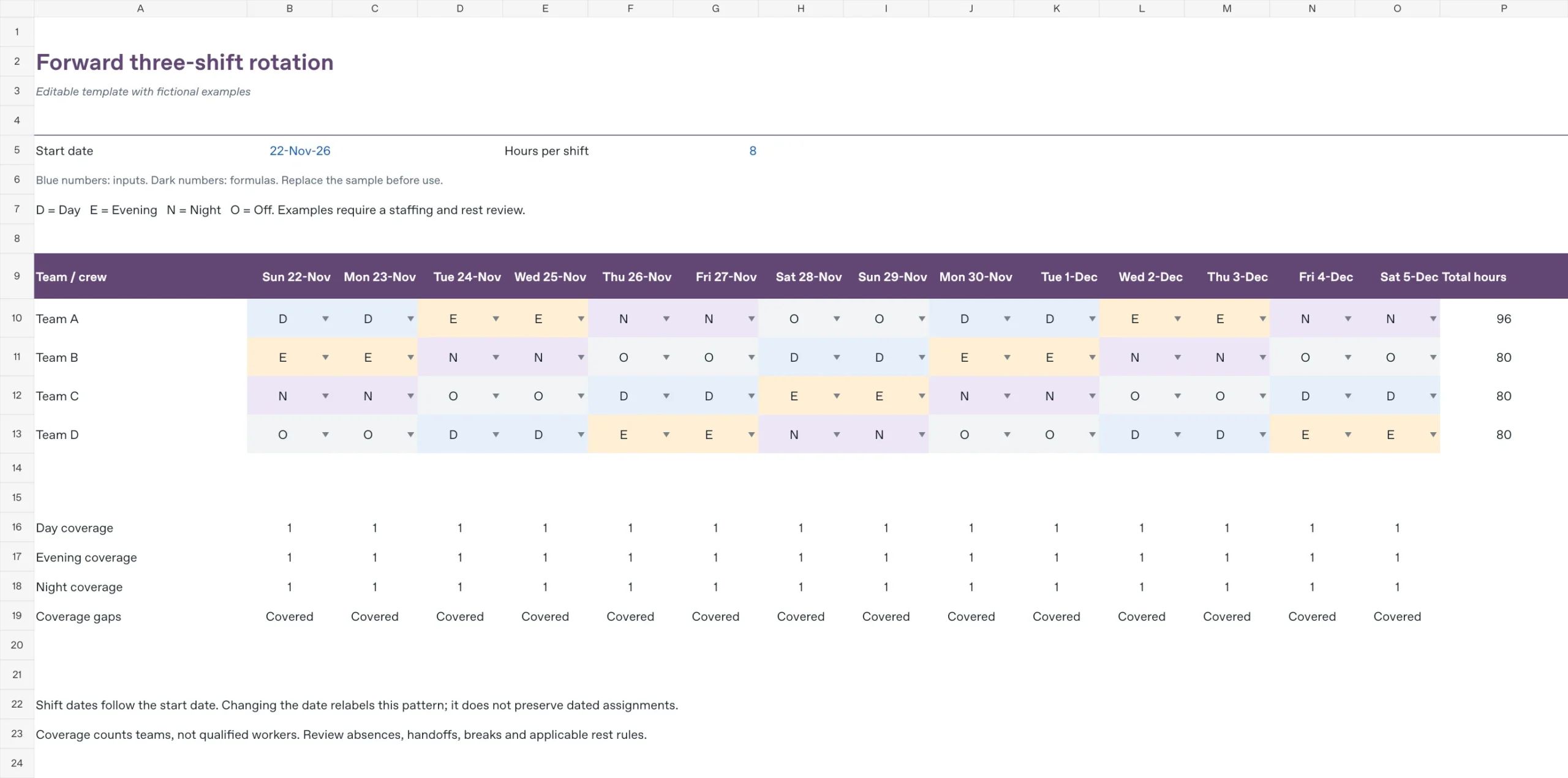
Download Forward three-shift rotation (.xlsx)
The plum roster uses day, evening, night, and off codes in a repeating two-day-block sequence. The example assumes eight hours per shift and displays separate counts for all three working periods. This makes it easier to spot a missing evening team that would be irrelevant in a two-shift operation.
Use this file to examine a forward sequence across a fortnight and compare team workloads. The total-hours column multiplies the number of D, E, and N entries by the hours input. It does not calculate payroll hours from actual clock-in and clock-out times.
If your operation has unequal shift lengths, the single hours-per-shift input is insufficient. Use a more detailed hours calculation or a separate time record. Do not enter an average shift length and describe the result as exact pay or attendance time.
Option 5: Flexible weekly shift coverage planner
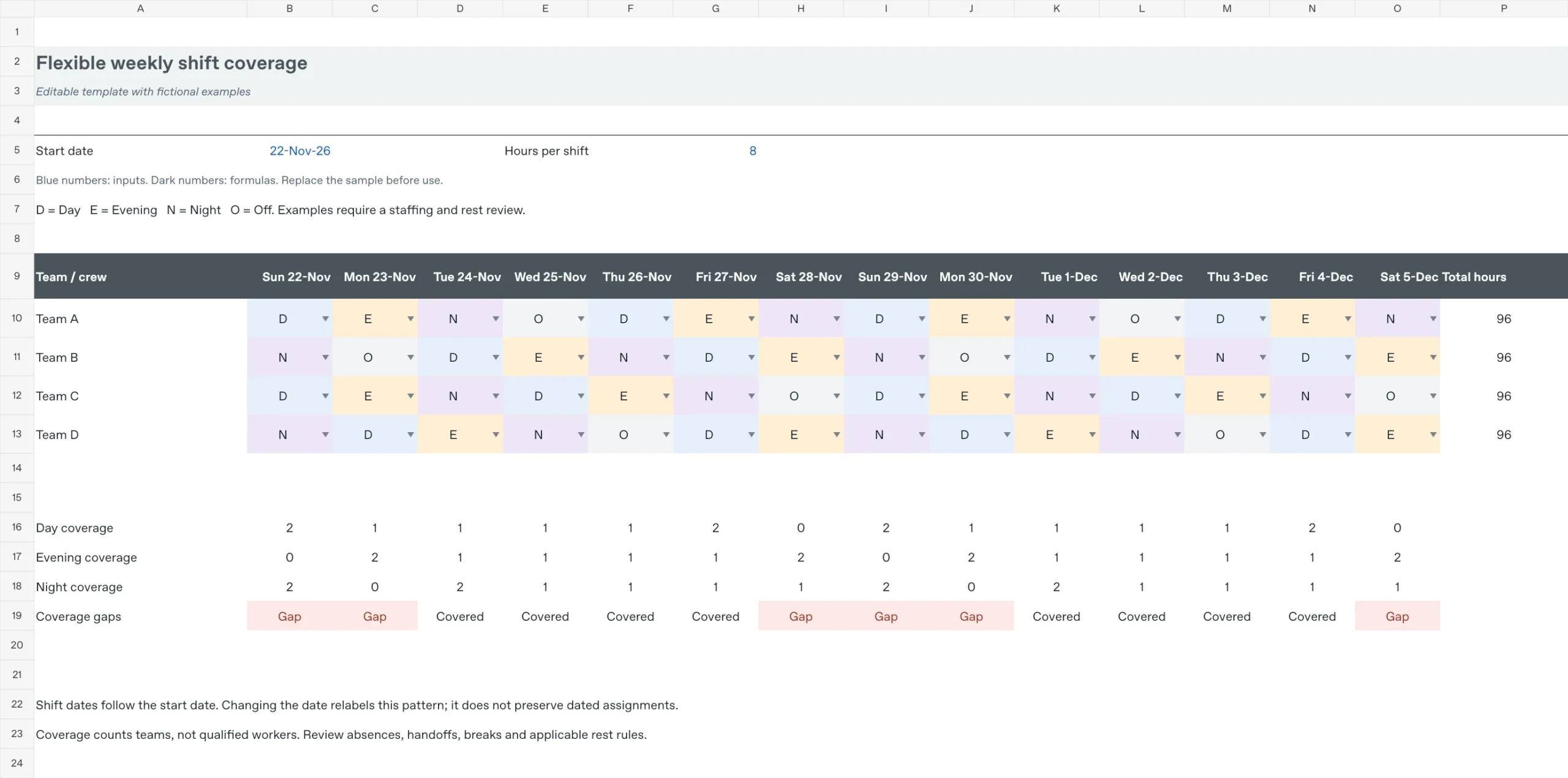
Download Flexible weekly shift coverage (.xlsx)
The graphite planner gives you a manually editable assignment grid with the same coverage feedback. It is useful for testing a custom combination of day, evening, night, and off assignments without assuming that one standard rotation fits the operation.
The fictional example intentionally includes dates with a coverage gap. Those cells show what the warning looks like. Replace the sample assignments and resolve the gaps before using the roster. A warning that disappears after an edit confirms that the entered team coverage has changed; it does not establish that every individual staffing requirement has been met.
Use this option when appointments, training, part-time availability, or planned shutdowns make a rigid repeating pattern inconvenient. Keep a record of approved changes so the published roster and the supervisor’s working copy remain aligned.
Build the schedule in five passes
First, define the required coverage. List the operating periods and the number and type of workers needed in each. Include supervision, specialist qualifications, handover, and relief arrangements where they affect staffing. This prevents the spreadsheet from becoming a colourful answer to an undefined requirement.
Second, choose a pattern and enter the start date. The template’s dates are linked to that cell, but the shift codes remain in their positions. Changing the start date relabels the pattern; it does not preserve assignments to the old dates. Save the approved version before creating another period.
Third, replace team labels with your agreed crew names or identifiers. Confirm the people within each crew separately. If you instead use one row per individual, recognise that the coverage counts will then count individuals rather than teams and may need different minimum thresholds.
Fourth, enter approved leave, training, and other availability changes. A person shown as part of a team may still be unavailable. Review the effect on both coverage and workload, and avoid solving one missing period by creating an impractical sequence elsewhere in the roster.
Fifth, check the complete cycle and the dates immediately before and after it. Review the plan with the responsible manager, issue a clearly dated copy, and define how changes will be communicated. The schedule is only useful when staff can identify the current approved version.
Fatigue and rest belong in the review
The CDC/NIOSH overview of fatigue and work identifies nonstandard schedules, including night work and extended hours, as relevant to work-related fatigue. A spreadsheet can make the assignments visible, but it cannot evaluate every person’s fatigue or the safety demands of a particular role.
Review actual start and finish times, travel considerations, recovery opportunities, and the nature of the work with the appropriate people in your organisation. Check applicable employment rules and agreements. None of the sample patterns should be treated as universally suitable simply because the coverage row is complete.
Keep scheduling and timekeeping connected
The roster records what you intend to happen. Attendance records show what actually happened. Keep the two connected through clear names, dates, and team identifiers, while preserving the distinction between planned hours and approved hours worked.
Use the site’s monthly timesheet templates for the actual time record where appropriate. A daily work schedule can then break the assigned shift into tasks without overloading the rotation grid with job-level detail.
For a team working ordinary weekly hours, the weekly schedule templates may be a simpler fit. Rotating shifts add value when the pattern genuinely changes across days and crews, rather than when a fixed weekly plan would communicate the work more clearly.
Frequently asked questions
Do the templates generate a new rotation automatically?
The files contain editable example patterns. The date row responds to the start date, and hours and coverage recalculate from the codes. They do not run an optimisation engine or automatically assign employees based on availability and skills.
Can I add more teams or dates?
Yes, but extend the formulas as well as the visible grid. New team rows must be included in coverage-count ranges. New date columns need date formulas and must be included in total-hours calculations. Test an added team or date before relying on the extended roster.
Why do some teams have different hours?
An eight-day rotation does not fit evenly into a fourteen-day window. The displayed totals therefore depend on each crew’s starting point. Review the full repeating cycle and the relevant reporting period before drawing conclusions about workload balance.
Can I print the schedule?
Yes. Use landscape orientation and review the print preview after changing team names or adding dates. Keep the code legend and coverage review visible. A readable two-page schedule is preferable to a one-page printout with dates too small for the team to use.

