

These five free invoice tracker Excel templates help you record customer invoices, monitor payments, and see which balances need attention. Choose a simple invoice log, an accounts receivable aging worksheet, a partial-payment tracker, a freelance billing sheet, or a collections follow-up log. Each download is an editable .xlsx workbook with a different color theme and a workflow suited to a different billing task.
A business can have healthy sales and still struggle to collect cash on time. An invoice tracking spreadsheet brings the invoice amount, due date, payments, and remaining balance into one place. It gives you a practical starting point for a weekly payment review without searching through emails or opening every invoice separately.
The preview images below show the actual workbook layouts. Download the version that matches your process, replace the fictional sample records, and keep the calculated columns intact. The files contain no macros and require no registration to download. Sample amounts use USD, but you can change the displayed currency format when all entries use the same currency.
Which invoice tracking template should you choose?
Start with the simplest layout that answers your main question. If you want to know what each customer still owes, use the simple log. If you need to prioritize older debt, choose receivables aging. When customers make deposits or several payments against one invoice, use the separate receipts ledger so every payment has its own record.
Freelancers billing by hours will find the project sheet more useful because it calculates an invoice from hours, rate, and an example tax rate. A person responsible for chasing payment should use the collections version, which leaves room for contact dates, an owner, and the next action. You can maintain different workbooks for different purposes, but choose one authoritative invoice record to avoid conflicting balances.
Choose and download your Excel template
1. Simple Invoice Log
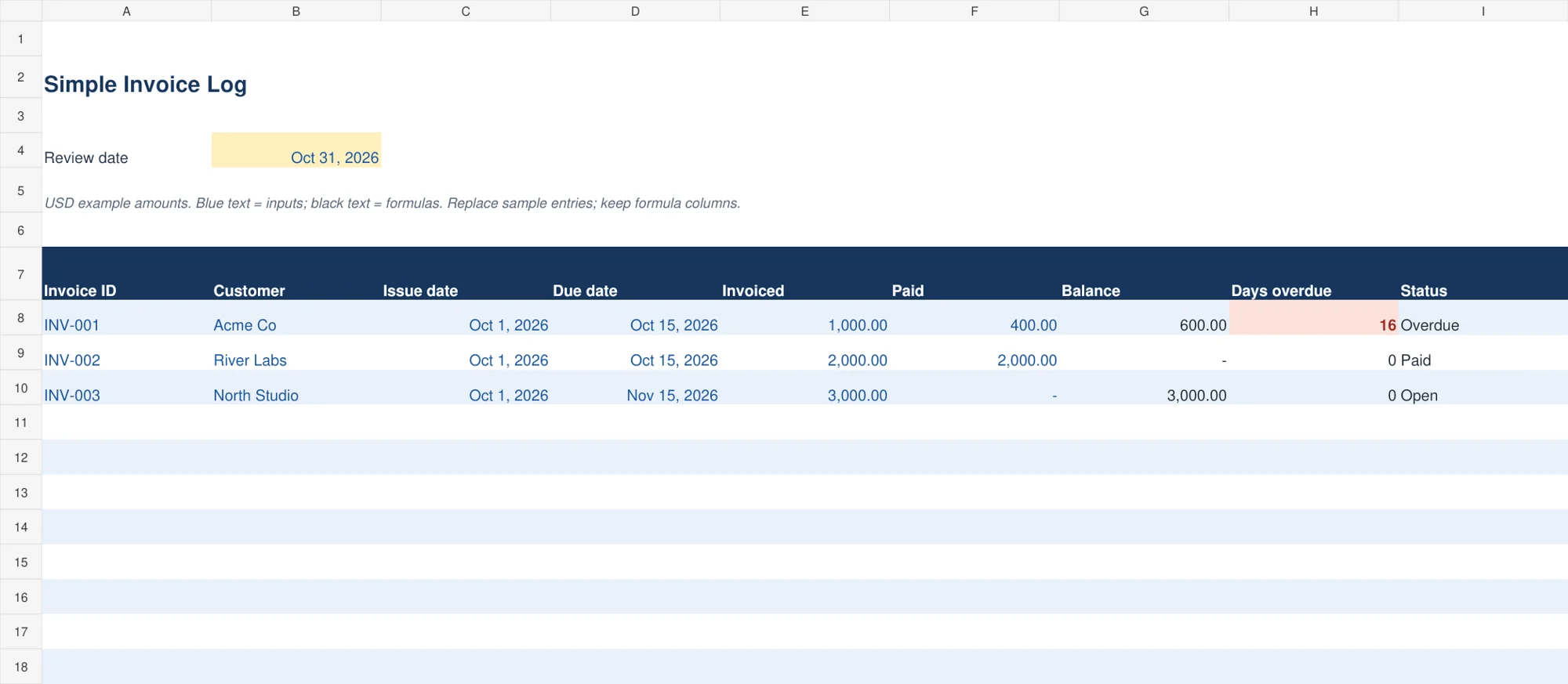
The navy corporate invoice log keeps invoice ID, customer, issue date, due date, invoiced amount, and payments together. Formulas calculate the remaining balance, days overdue, and a short status such as Open, Paid, Overdue, or Credit. An editable review date lets you decide the date used for the overdue calculation.
Use this version for a small customer list with straightforward payments. Enter the cumulative amount received against each invoice in the Paid column. The total due adds the calculated balances, so you can review outstanding money quickly. A negative balance is shown as credit rather than being silently removed, giving you a reason to check an overpayment.
2. Receivables Aging
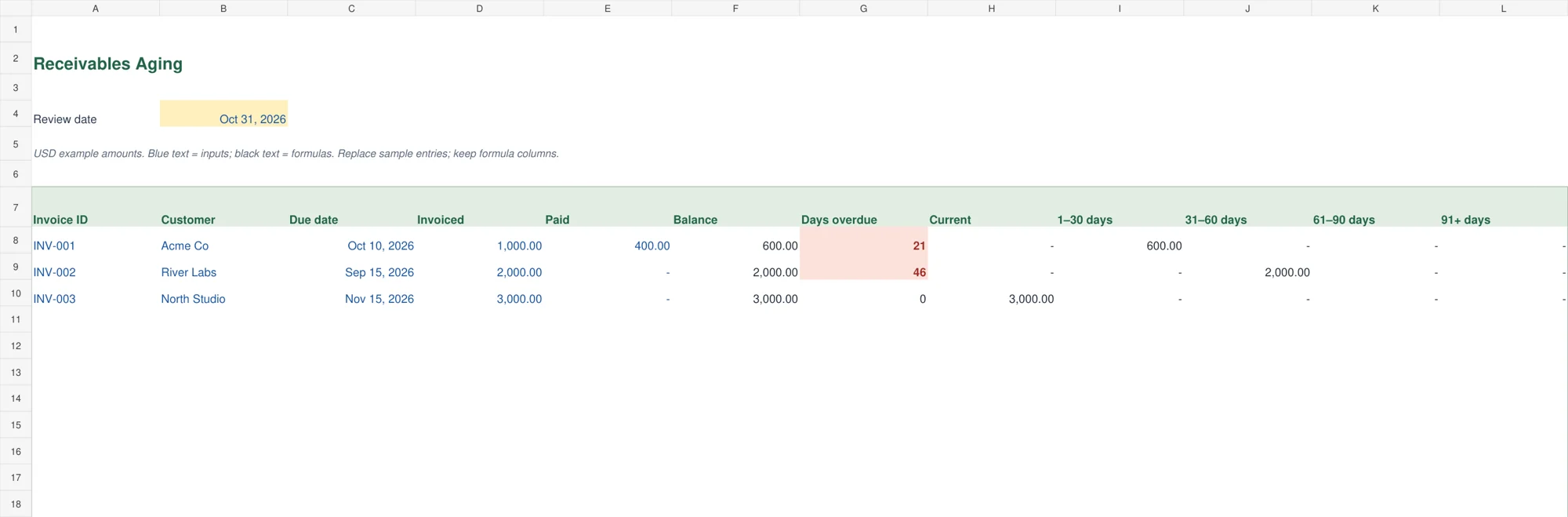
The green minimalist receivables aging template separates open balances into Current, 1–30, 31–60, 61–90, and 91+ day groups. Aging uses the due date and the review date. A balance that is due today remains current, while a balance one day past due enters the first overdue group.
This is useful when the same total receivable can hide very different collection risks. Review the older groups first, confirm whether there is a dispute, and assign an appropriate follow-up. The sample includes both overdue and future-due invoices so you can see how the categories behave before replacing the example rows.
3. Partial Payment Tracker
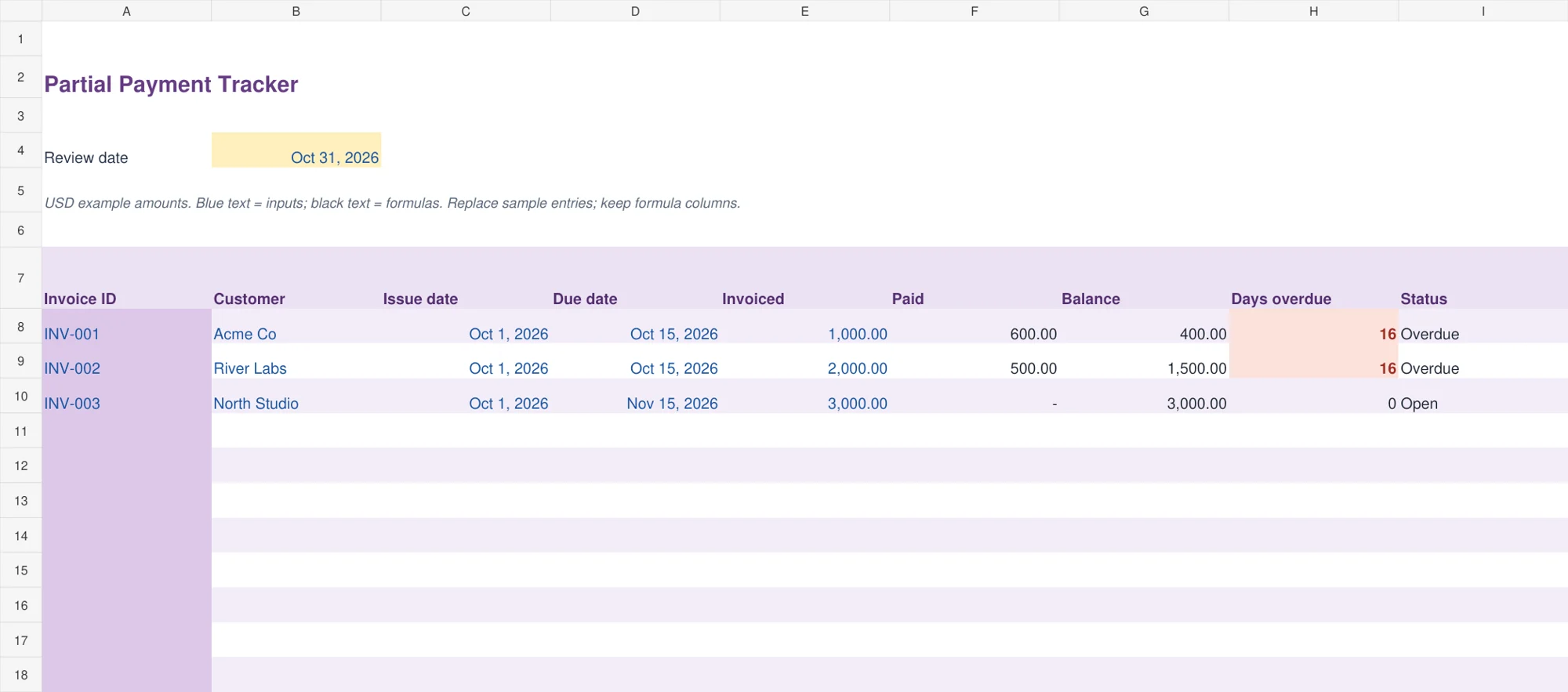
The purple editorial partial-payment workbook has a Tracker sheet and a separate Receipts sheet. Enter each payment once with its receipt ID, invoice ID, payment date, amount, and method. The Tracker uses matching invoice IDs to total the receipts and calculate the unpaid balance.
Choose it for installment payments, deposits followed by a final payment, or customers who pay an invoice in several transfers. Exact invoice IDs matter: INV-001 and INV001 are different references. The receipt history adds useful detail while keeping the main invoice row readable. A payment-method dropdown helps keep entries consistent.
4. Freelance Billing Tracker
The warm terracotta freelance billing tracker starts with project, client, hours, hourly rate, and tax rate. It calculates the gross invoice and subtracts the deposit paid to show the balance due. This layout supports a service provider who wants to understand the calculation behind the amount being tracked.
For example, ten hours at 50 produces 500 before tax. With the example five percent tax rate, gross billing becomes 525. A deposit of 200 leaves 325 due. Set tax to the treatment agreed for your work. This is a billing calculation and tracking sheet; it does not generate or send a customer invoice.

5. Collections Follow-up
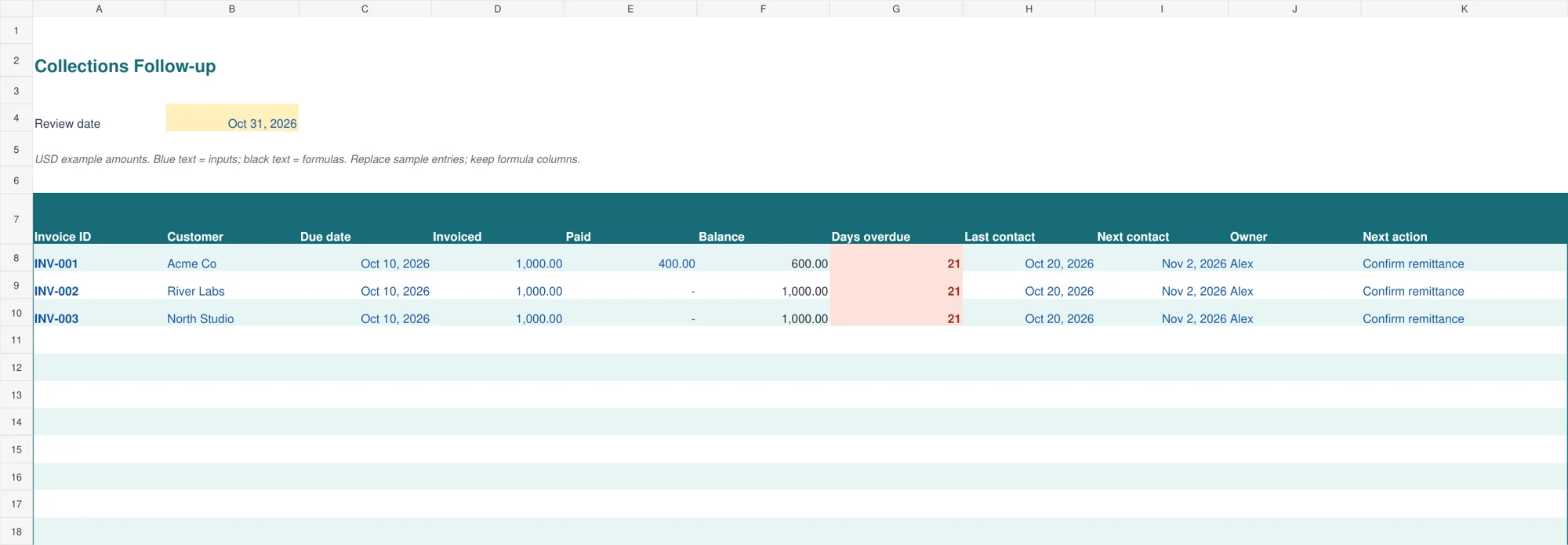
The teal operations follow-up log adds last contact, next contact, owner, and next action to the basic overdue balance. Keep the next action specific, such as confirming a remittance reference or asking the customer to approve a disputed item. Record a responsible person so the same customer does not receive repeated requests from several staff members.
Use this template in a weekly collections meeting. Update receipts before making contact, review days overdue, and decide what happens next. A reminder date is an entry for your team to review; the workbook does not automatically send emails or calendar notifications.
How to set up an invoice tracker in Excel
Save a clean copy before entering live records. Set the review date to the date you want to use for your payment review. Replace the customer names and example invoice IDs with your own references. Enter real Excel dates, rather than text that only resembles a date, so overdue calculations work correctly.
Record one invoice per row. Enter the full invoiced amount using the same basis across the workbook, normally the amount payable by the customer including any applicable tax. Record payments against the correct invoice rather than reducing the original invoice value. Keep credit notes and disputed adjustments supported by their own documents.
Check the first completed record against the original invoice and a bank receipt. Compare the calculated balance with the amount you expect to collect. Then add the remaining invoices. The tracker layouts provide fifteen prepared invoice rows. The receipts version also has fifteen prepared receipt rows. Before expanding either sheet, copy the relevant formula rows and extend the summary and receipt lookup ranges to include the new records.
The blue text identifies editable entries and black text identifies calculated results. These color cues help you avoid replacing formulas with typed numbers. You can change fonts, labels, and colors, but keep a backup before restructuring columns. If several people update the workbook, agree who owns the master file and when it is reviewed.
Understand balances, overdue days, and aging
The basic balance calculation is invoice amount minus payments received. A 1,000 invoice with 400 received leaves 600 outstanding. If the due date is October 15 and the review date is October 31, the unpaid invoice is sixteen days overdue. Fully paid invoices have zero overdue days in these tracking layouts.
The aging version groups positive unpaid balances by days past the due date. Its groups should add up to the total positive balance in that sheet. It uses cumulative payments entered in the current workbook. Changing the review date alone does not reconstruct an accurate historical receivables balance if you have already entered payments received after that date.
For a historical month-end report, use a saved month-end copy or exclude payments that occurred after the reporting cutoff before preparing the report. Review credit balances separately because a customer overpayment needs different handling from an overdue invoice. Intuit’s accounts receivable aging guidance provides another reference for understanding aging reports.
Keep invoice tracking connected to your records
Use consistent customer names or customer IDs across your invoice file and your Excel client database. The customer directory holds contact details, while the tracker holds transaction balances. This separation makes it easier to update a billing contact without changing old invoices.
Compare receipts with your bookkeeping records and bank transactions before marking an invoice paid. A promised payment is not a receipt. A transfer reference also needs to be checked against the actual amount credited to the bank.
Use the payment information to support a cash-flow worksheet, while keeping expected collections separate from money already received. An invoice due next week may inform planning, but it should not be included in today’s available bank balance.
Common invoice tracking mistakes to avoid
Do not create another invoice row every time a customer makes a payment. That can double-count sales. Use cumulative payments in a simple log or separate receipt rows in the partial-payment workbook. Avoid reusing an invoice ID for a different customer, because receipt matching depends on a unique reference.
Do not mix currencies and add them into one total without an explicit conversion process. Changing a cell’s currency symbol does not convert its value. Keep one currency per file or maintain separate workbooks with a clear reconciliation back to your accounting system.
Finally, review a paid invoice before deleting it. Keeping its record preserves the link between the original charge and its settlement. Archive older completed records in a dated file rather than overwriting them with new transactions.
Frequently asked questions
Are these invoice tracker Excel templates free and editable?
Yes. Each download is an editable .xlsx file with sample entries and working formulas. Download the workbook directly using its button, save a copy, and replace the examples with your own records.
Which version should I use for partial payments?
Use the partial-payment tracker with its separate Receipts sheet. Enter one row per payment and use the same invoice ID as the main tracker. The paid total updates from the matching receipts.
Can I use the workbook in Google Sheets?
You can import .xlsx files into Google Sheets, but check the formulas, date formats, dropdowns, and layout after import. These downloads were built as Excel workbooks, and an imported copy may look different.
Does the tracker send payment reminders?
No. The collections version records the owner, next contact date, and action for your review. Sending reminders requires your normal email or billing process.
Can I add more invoices?
Yes. Extend the prepared rows carefully, copy calculated columns, and expand every total or lookup range that should include the additional entries. Test one new invoice and a matching receipt before using the expanded file.

