

Two sales representatives can close the same value of business and earn different commission because their plans use different rules. A flat percentage, a marginal tier, an above-quota accelerator and a gross-profit plan calculate different results. Choosing the correct sales commission calculator Excel template starts with the written compensation plan.
This collection contains five free, editable Excel workbooks with different designs and purposes. Four calculate common commission arrangements. The fifth tracks approved earnings, adjustments and payments. Each includes fictional sample values, formula-driven results and a preview so you can see how the calculation is organized before downloading.
Confirm these rules before entering sales
Define eligible revenue first. A plan may use booked sales, invoiced sales, collected cash or another agreed measure. Taxes, discounts, returns and pass-through charges may receive different treatment. The templates leave the eligible amount editable because a spreadsheet cannot infer those terms from a deal value alone.
Next, confirm the earning period and credit allocation. A monthly quota cannot be compared directly with annual sales. A shared deal needs an agreed split that does not accidentally award the full amount twice. Keep the deal identifier, representative and period consistent with the sales records so a reviewer can trace the amount back to the underlying transaction.
Finally, identify when commission becomes payable and how later corrections work. An earned calculation and a payment approval are separate records. If an invoice is canceled or a customer returns goods, the treatment should follow the plan. Record the adjustment and evidence rather than silently changing a past payout that has already been approved.
Marginal tiers and accelerators need careful labels
A marginal tier pays each rate only on sales inside its band. With limits of 10,000 and 20,000, sales of exactly 10,000 occupy the first band only. Sales of exactly 20,000 fill the first two bands. At 25,000, the final 5,000 reaches the third band. Keeping those portions in separate columns makes the boundary behavior visible.
An above-quota accelerator in this collection uses a related structure with two portions. It applies the base rate to sales up to quota and the accelerated rate to the excess. It does not apply the accelerated rate to the entire period. Some compensation plans do apply an achieved rate to all eligible sales. Confirm that distinction before adapting a workbook with a similar title.
For a broader explanation of commission arrangements, see Salesforce’s guide to sales commission types and formulas. The examples in these workbooks are deliberately specific about their calculation rules, so you can compare them with the approved terms rather than relying on the label tiered alone.
Choose and download your Excel template
1. Flat Rate Commission
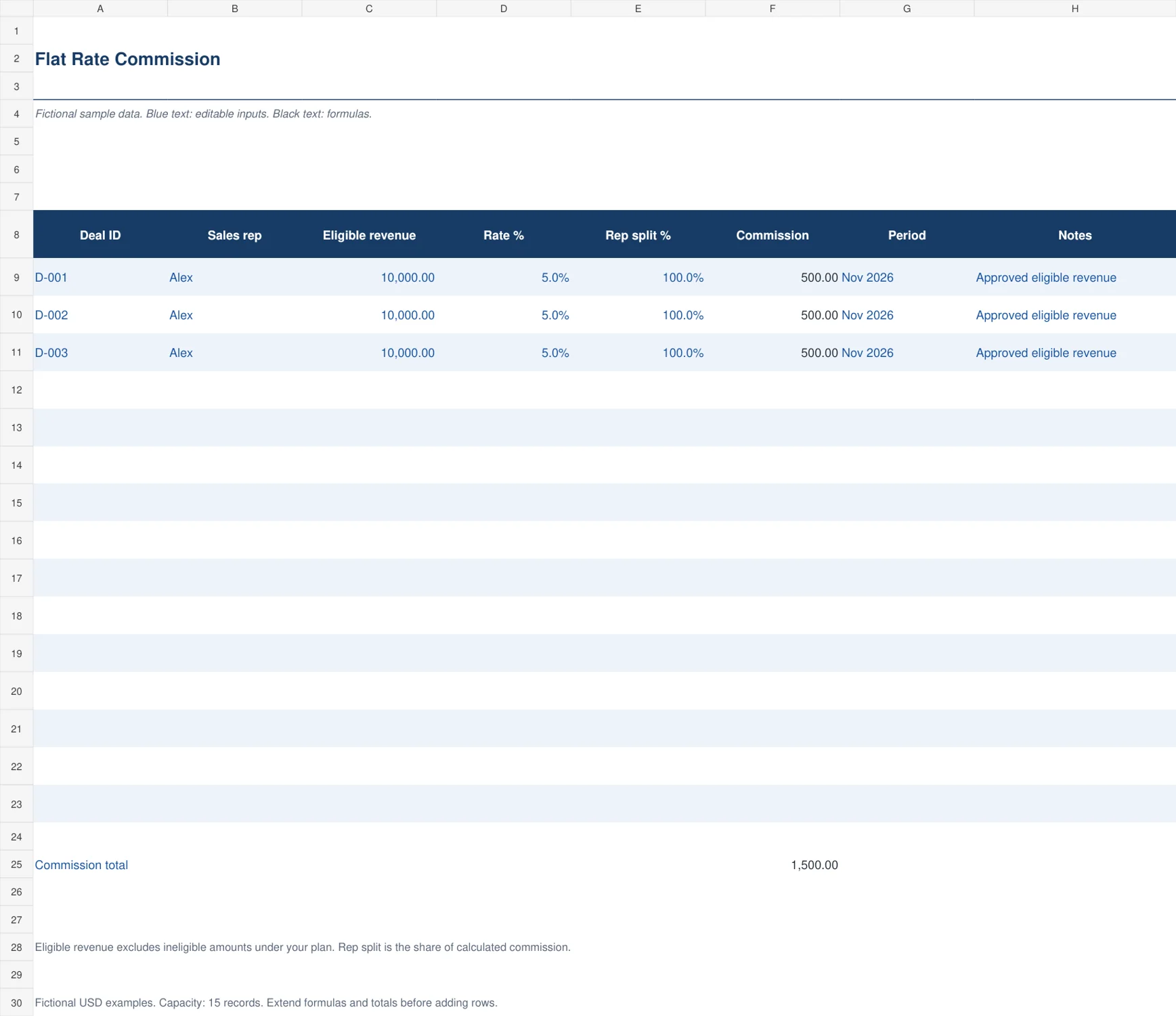
The navy calculator handles a straightforward percentage of eligible revenue and an optional representative share. Revenue, commission rate and split remain separate inputs, while the earned amount calculates for each deal. A period field keeps the sales record tied to the appropriate statement. This suits a small team with a clear flat-rate plan and makes shared credit visible without hiding it in a manually adjusted total.
Enter the revenue that qualifies under the approved plan. Set the commission rate and the representative’s share as percentages. For example, 10,000 of eligible revenue at 5% with a 100% share produces 500. Reducing the share to 50% produces 250. Enter the other representative separately if the plan requires the remaining share to be tracked.

2. Marginal Tier Commission
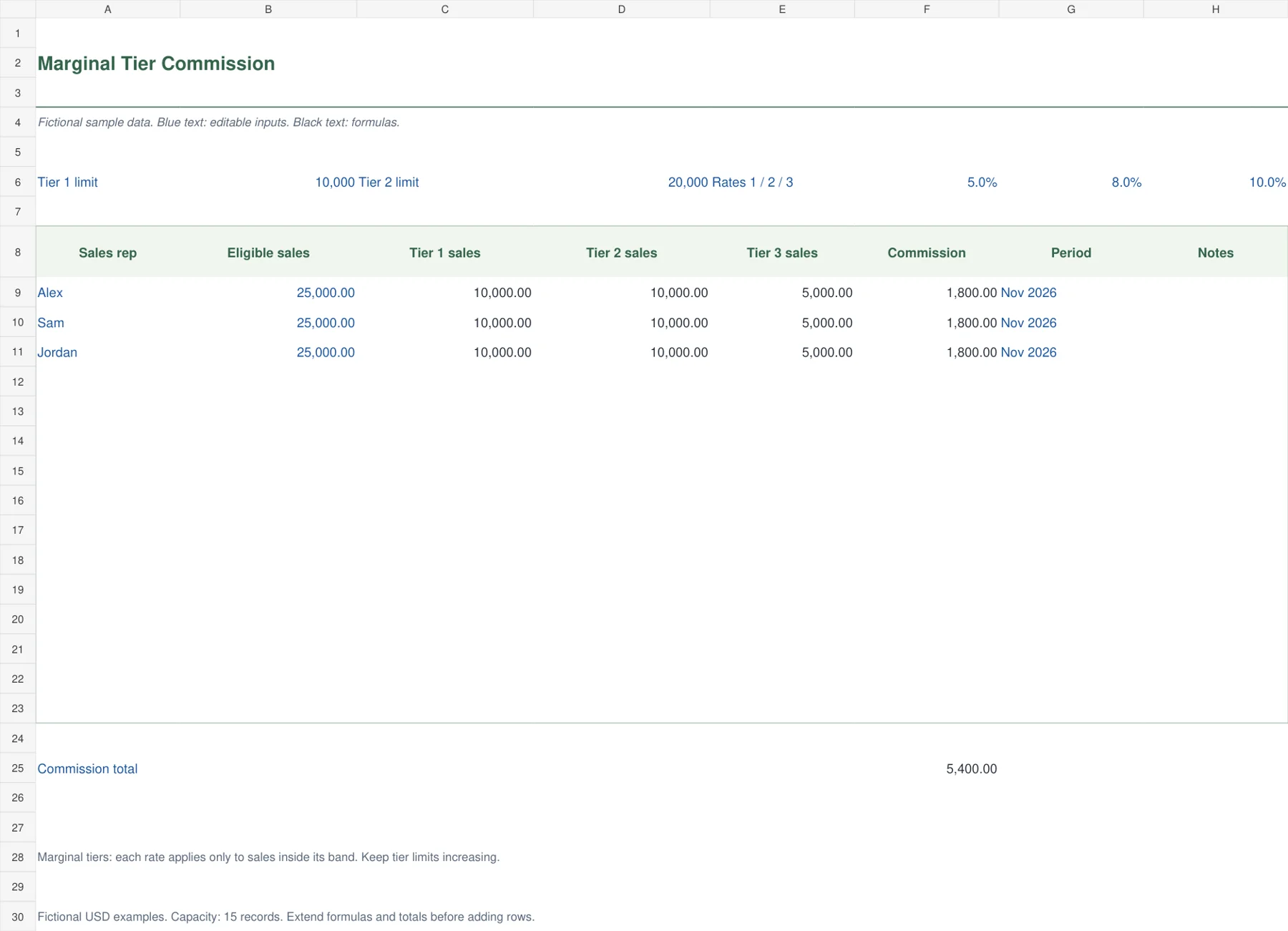
The green tier calculator divides a period’s sales into three bands before applying the corresponding rates. The editable limits are 10,000 and 20,000 in the fictional example, with rates of 5%, 8% and 10%. Separate sales columns reveal how much falls into each band. This is a marginal model: reaching a higher band does not change the rate on earlier sales.
With 25,000 of sales, the first 10,000 earns 500, the next 10,000 earns 800 and the final 5,000 earns 500, totaling 1,800. Change limits and rates only after confirming the plan. Keep limits increasing. If your plan applies the highest achieved rate to all sales, use a different formula because this marginal calculator would produce a different payout.

3. Quota Accelerator Commission
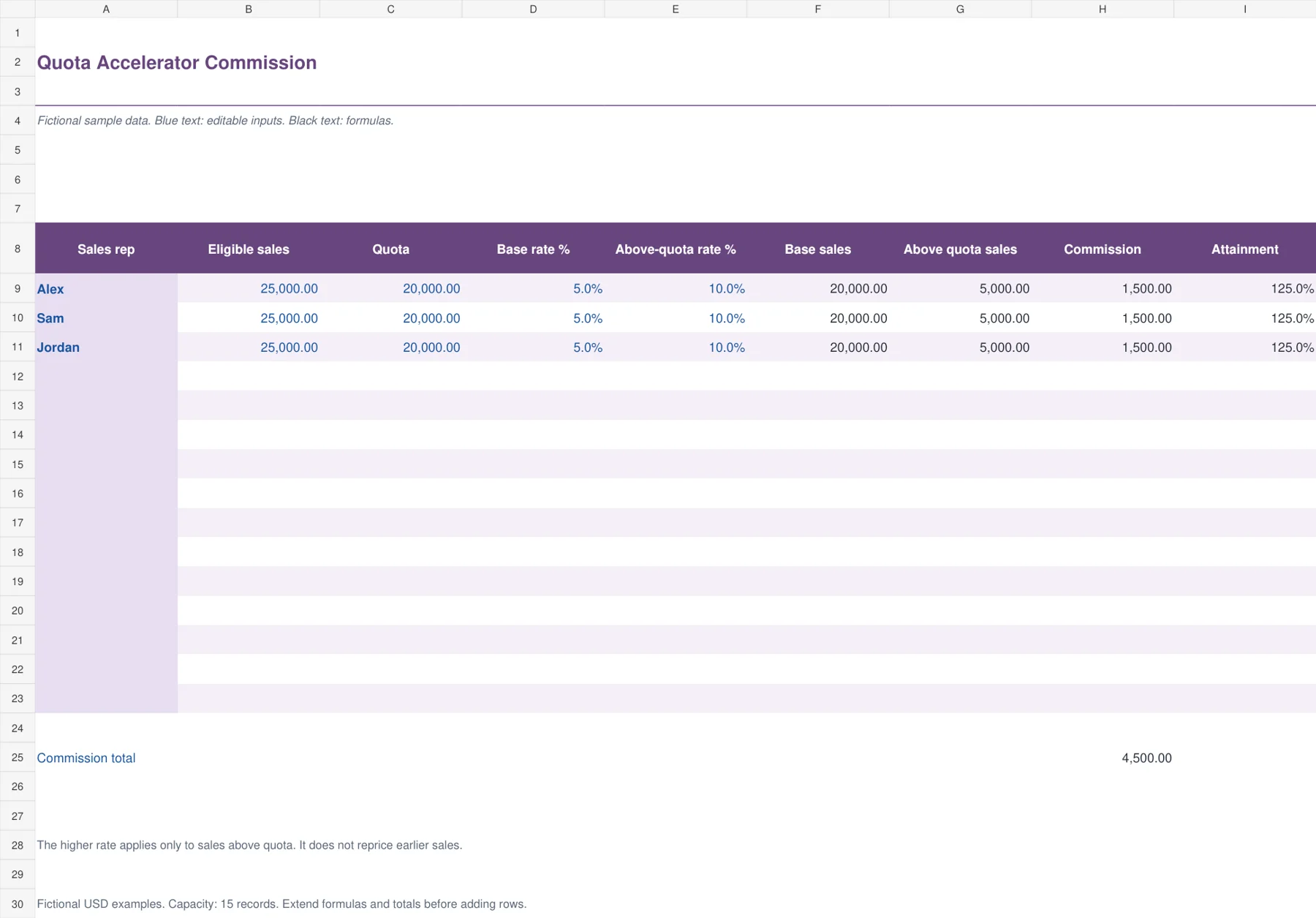
The purple accelerator sheet compares eligible sales with quota. It separates sales up to quota from sales above quota, applies a base rate to the first portion and a higher rate only to the excess. An attainment percentage provides context beside the commission amount. This arrangement fits a plan where incremental sales above target receive a stronger incentive without repricing the sales that earned the base amount.
Enter each representative’s quota and rates for the same period. In the example, 25,000 of sales against a 20,000 quota earns 5% on 20,000 and 10% on the remaining 5,000. Commission is 1,500 and attainment is 125%. A zero quota displays n.a. for attainment, so a missing or invalid target does not appear as a useful percentage.

4. Gross Profit Commission
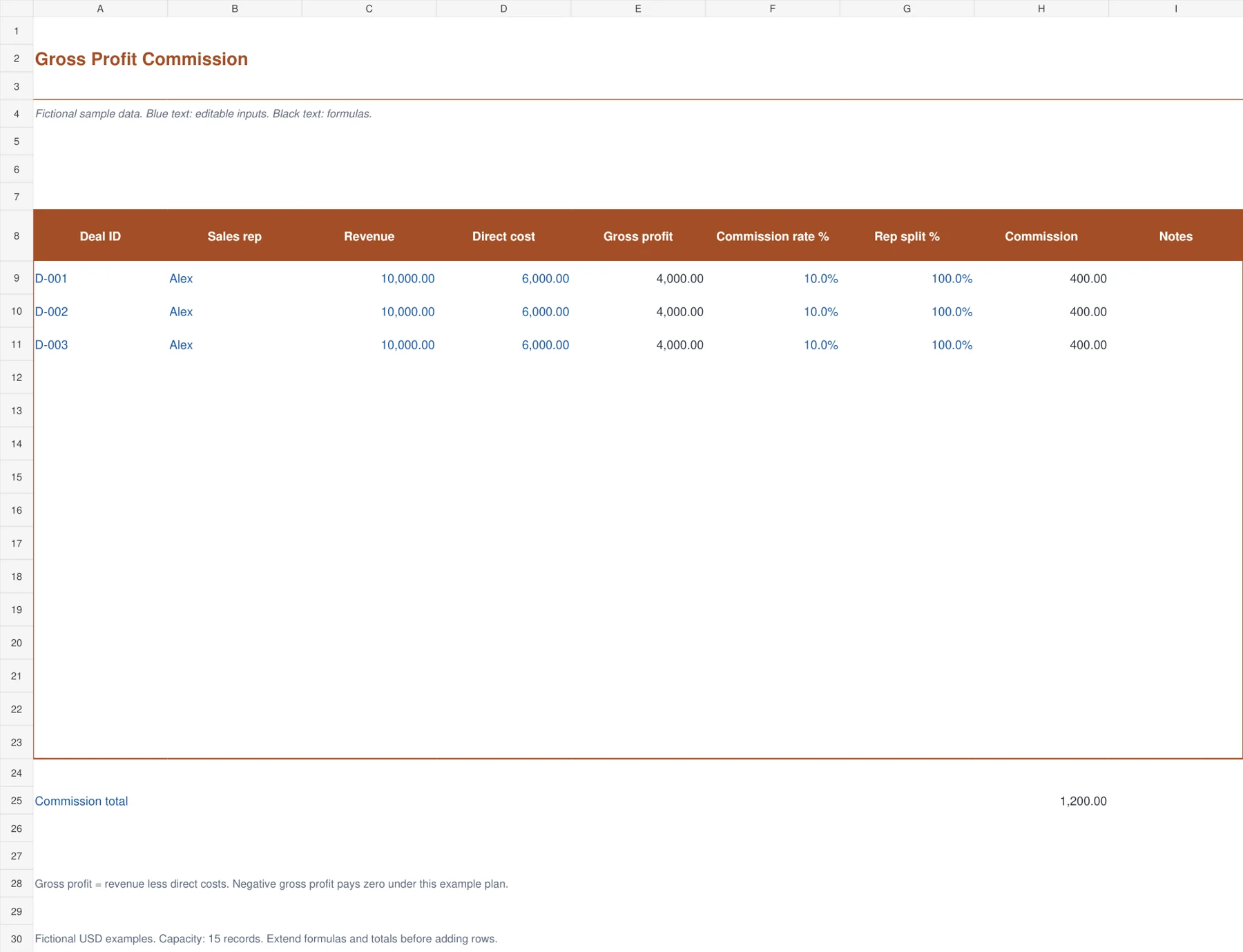
The orange profit-based sheet calculates gross profit from revenue less direct cost before applying the commission rate and representative split. This makes it useful when the plan rewards margin contribution rather than the invoice total. The cost basis remains visible beside revenue, helping the reviewer identify cases where a high sale value produces a relatively small commission because the direct cost is also high.
Enter revenue and the direct costs defined by your plan. At revenue of 10,000 and cost of 6,000, gross profit is 4,000. A 10% commission with a full share produces 400. This example floors commission at zero when gross profit is negative. If your agreement requires a clawback or negative adjustment, record it through the payout register rather than assuming this formula implements that rule.

5. Commission Payout Register
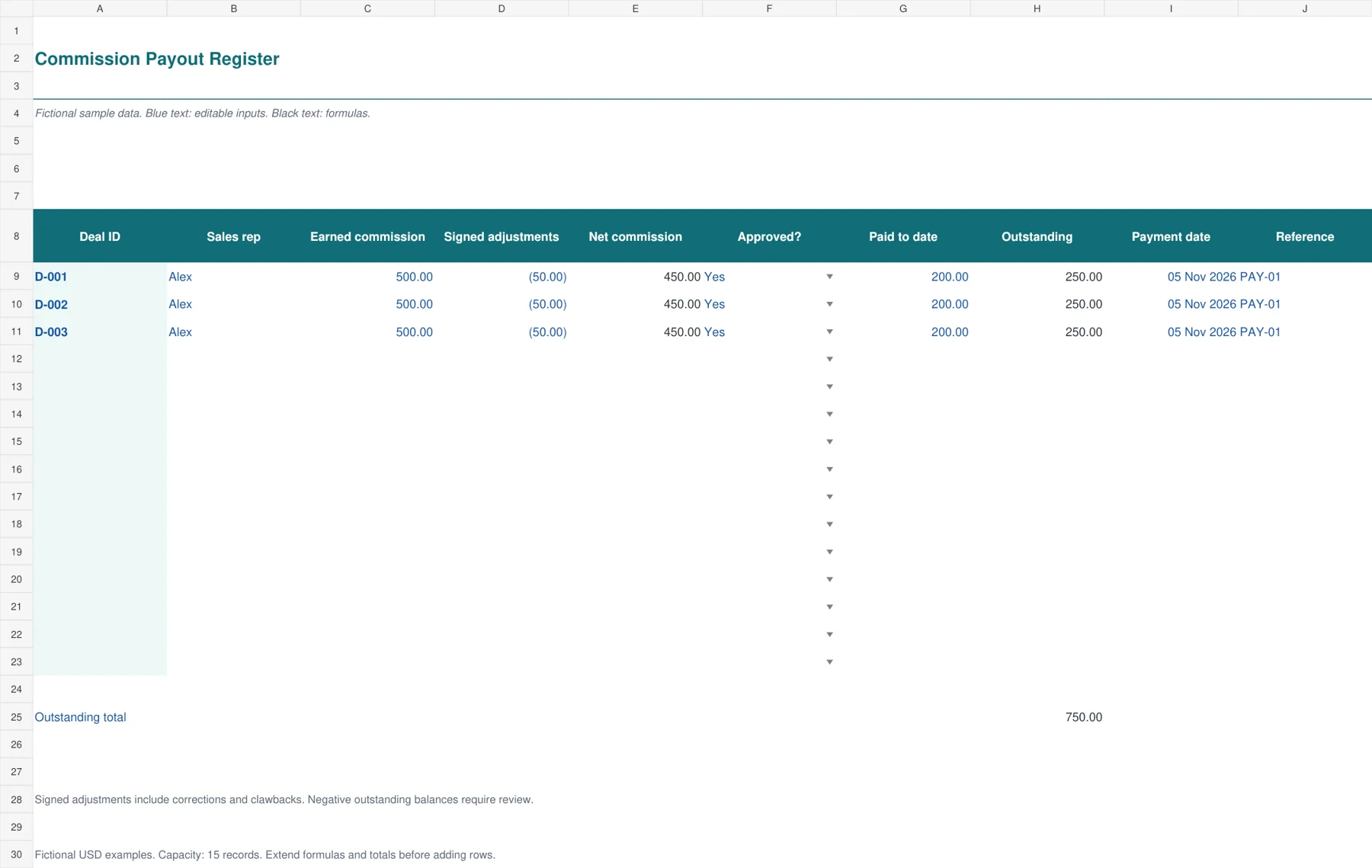
The teal payout register follows earned commission through signed adjustments, approval and payment. Net commission is earned amount plus adjustments, and outstanding balance is net commission less paid to date. A payment date and reference help the reviewer trace the actual disbursement. Conditional formatting draws attention when a payment appears against a row that is not approved. The sheet records payment status rather than calculating sales eligibility.
Enter the approved earned amount from the relevant calculator or statement. Use positive adjustments for additions and negative adjustments for reductions. With 500 earned, a minus-50 correction and 200 paid, the outstanding balance is 250. Investigate negative outstanding balances and keep evidence for adjustments. Approval and payment remain deliberate steps outside the workbook, with no automatic payroll or banking connection.

Build a monthly commission review
Begin with the underlying sales list and confirm which transactions belong to the period. Use a stable deal identifier and retain the representative who receives credit. A sales pipeline template can help follow opportunities before closing, but only eligible transactions under the plan should reach the commission calculation. An open opportunity is not automatically earned revenue.
Review discounts, returns and cost adjustments before calculating the payout. For a profit-based plan, make sure the direct-cost definition is consistent across deals. Your pricing templates can support the original margin discussion, while the commission worksheet uses the actual eligible revenue and costs required by the plan. Do not mix projected costs on one row with final costs on another without explanation.
Check a few transactions independently, including a shared deal and a threshold boundary. Then review the statement with the person responsible for approval. Record any correction in a way that preserves the original transaction reference. A small team benefits from resolving an unclear calculation before the payment date rather than carrying an unexplained adjustment into the next month.
Transfer reviewed earnings into the payout register and record actual payments after processing. Reconcile the payment total with your normal financial records. Use a profit and loss template for broader business reporting while retaining deal-level support for commission expense. The register does not submit payroll, calculate withholding or initiate bank transfers.
Avoid errors that make a correct formula misleading
Check that rates are entered as percentages. Typing 5 instead of 5% can multiply a payout by one hundred. Keep numeric fields numeric and use the cell’s percentage format. Similarly, a representative share of 100% means the full calculated commission, while 50% means half. It is a share of the commission, not a second commission rate.
Use one currency per workbook. A total combining different currencies without conversion is not meaningful. Replace the fictional USD examples with your own values and format, then keep a clear conversion process if the business needs consolidated reporting. The provided formulas do not fetch exchange rates or interpret local payroll rules.
Do not overwrite formula cells to force agreement with an expected amount. Find whether the difference comes from the revenue basis, rate, split, cost definition or plan rule. An agreed one-off correction belongs in a clearly documented adjustment. That approach preserves a calculation other people can follow when the same question returns next month.
Customize and test your selected file
Blue text marks editable inputs and dark text marks formulas. Each workbook provides fifteen records. The tier calculator has shared limits and rates above the detail, so changing an approved rate updates every representative in that file. Use a separate file or an appropriate rate structure if representatives have different plans. Keep the compensation-plan version with the monthly record.
Before extending the sheet, save a clean master. Insert new rows within the working area, copy formulas and extend the total range. Check one added transaction and the final total. Test a zero sale, a shared deal, sales exactly at a threshold and a correction. These small checks are especially useful after adapting a plan because a plausible total can still come from the wrong rule.
Frequently Asked Questions
Which workbook should I choose for a basic percentage plan?
Use Flat Rate Commission when the same agreed rate applies to eligible revenue. Enter the representative share separately for shared credit. If the amount depends on quota, sales bands or direct costs, choose the corresponding calculator and compare its stated rules with the approved plan.
Does the tier calculator apply the highest rate to all sales?
No. It uses marginal bands, applying each rate only to the sales inside that band. The quota calculator also applies the higher rate only above quota. A plan that reprices the full period at the highest achieved rate needs a different calculation.
Can I track clawbacks and partial commission payments?
Yes. The payout register accepts signed adjustments and paid-to-date amounts. A negative adjustment reduces net commission, and the balance shows what remains after payments. Keep the deal reference and supporting explanation so the change can be reviewed. The register does not decide whether a clawback is permitted.
Are these templates a payroll system?
No. They calculate sample commission models and track approved payouts. They do not calculate statutory deductions, submit payroll or transfer money. Use the verified earnings with your normal payroll or payment process, keeping the compensation terms and approval evidence with the monthly record.

