
A 401(k) contribution calculator estimates employee retirement contributions and, where applicable, an employer match. It is useful for checking a payroll scenario using the rules of a specific plan.
Choose a layout that separates employee deferrals, employer contributions, pay frequency, and the year being modeled. Check current limits and the plan’s matching formula before entering assumptions.
Template previews and downloads
Detailed 401k Contribution Calculator Template
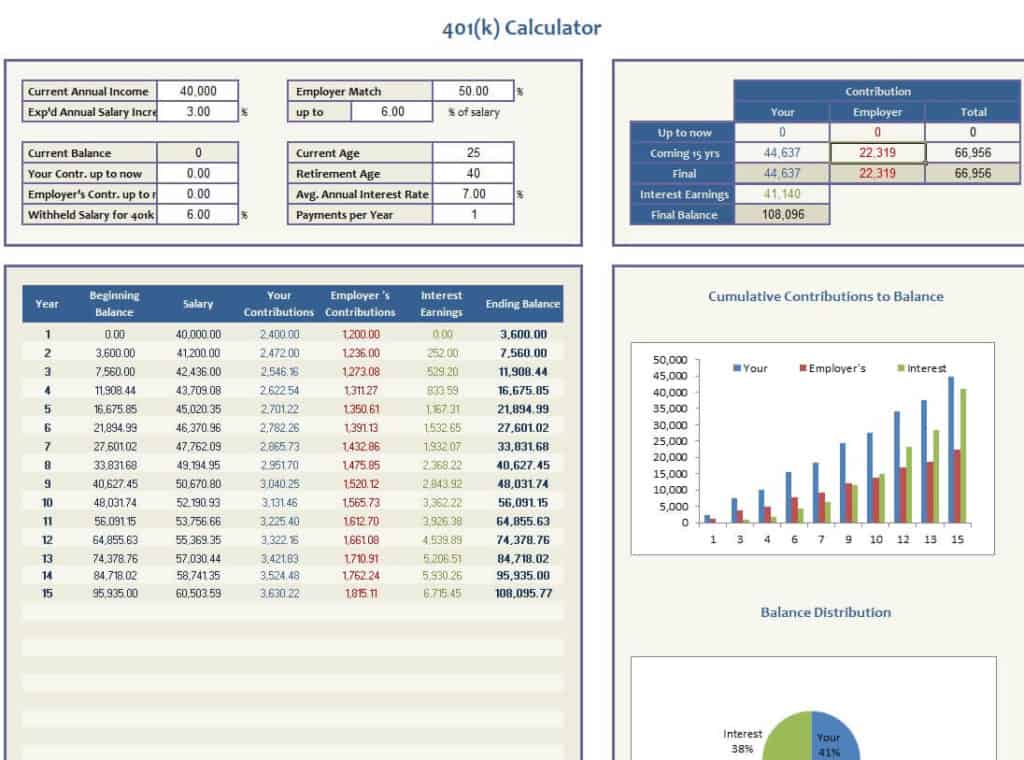
401k Savings Calculator Excel Template
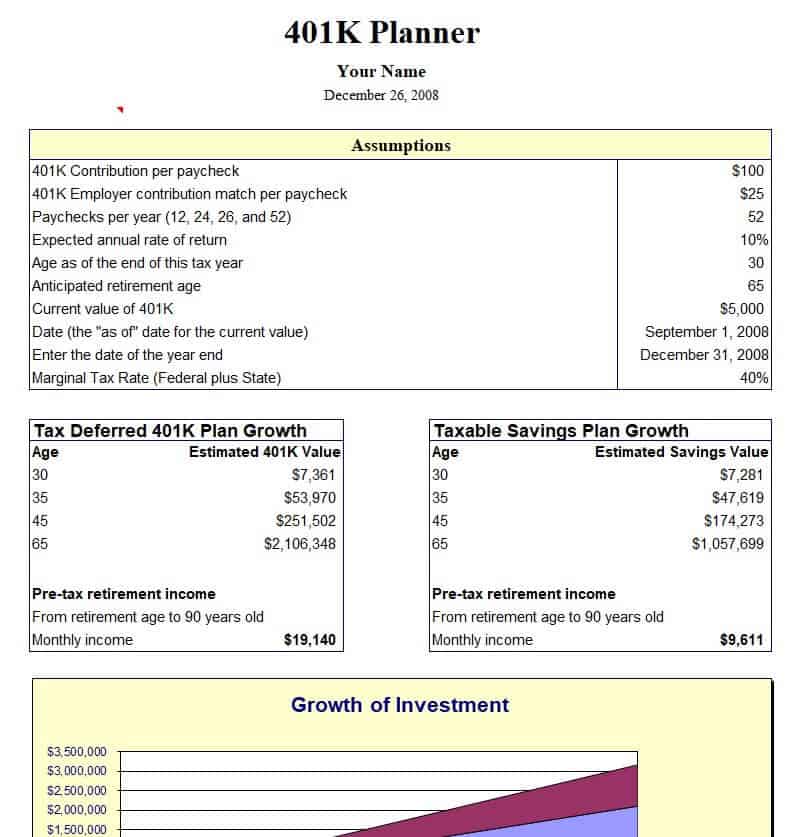
Sample 401k Planner Template in XLSX Format
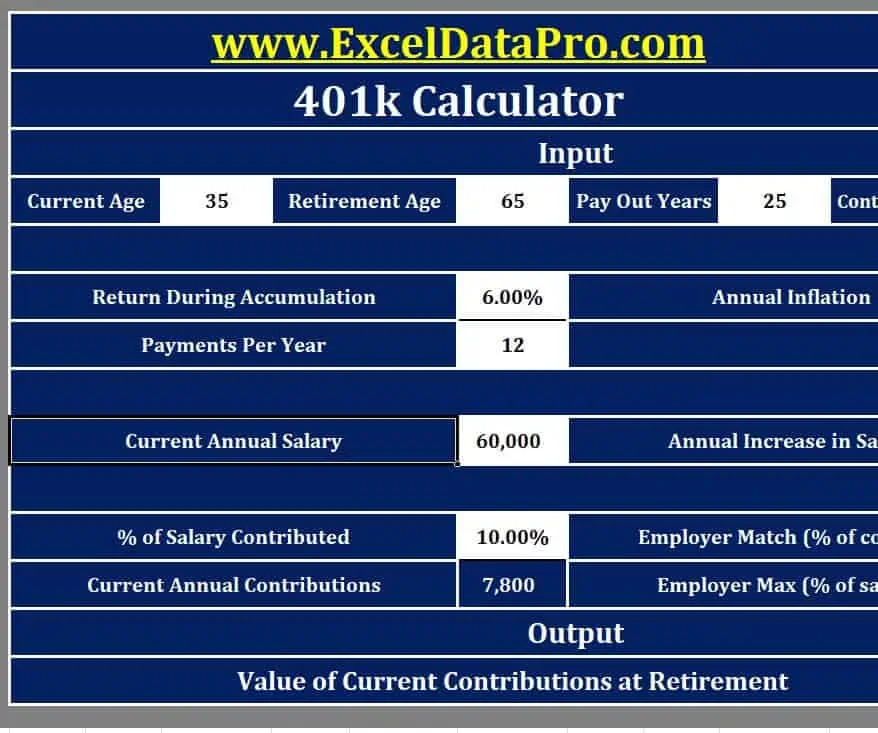
Official 401k Contribution Calculator Template
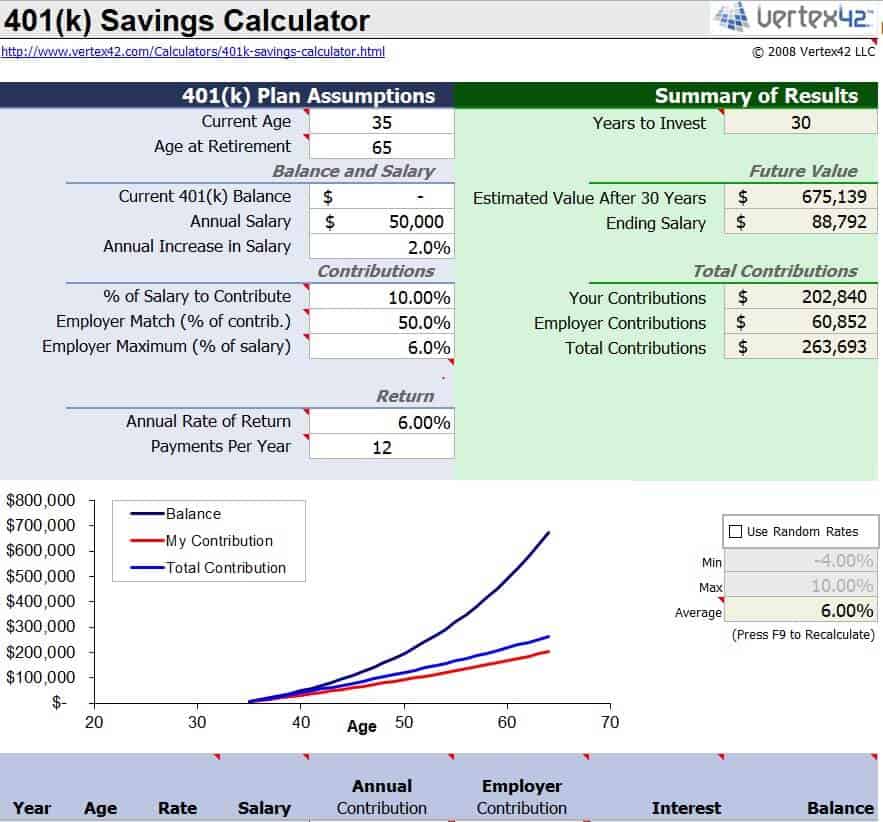
Free Online 401k Savings Calculator Template
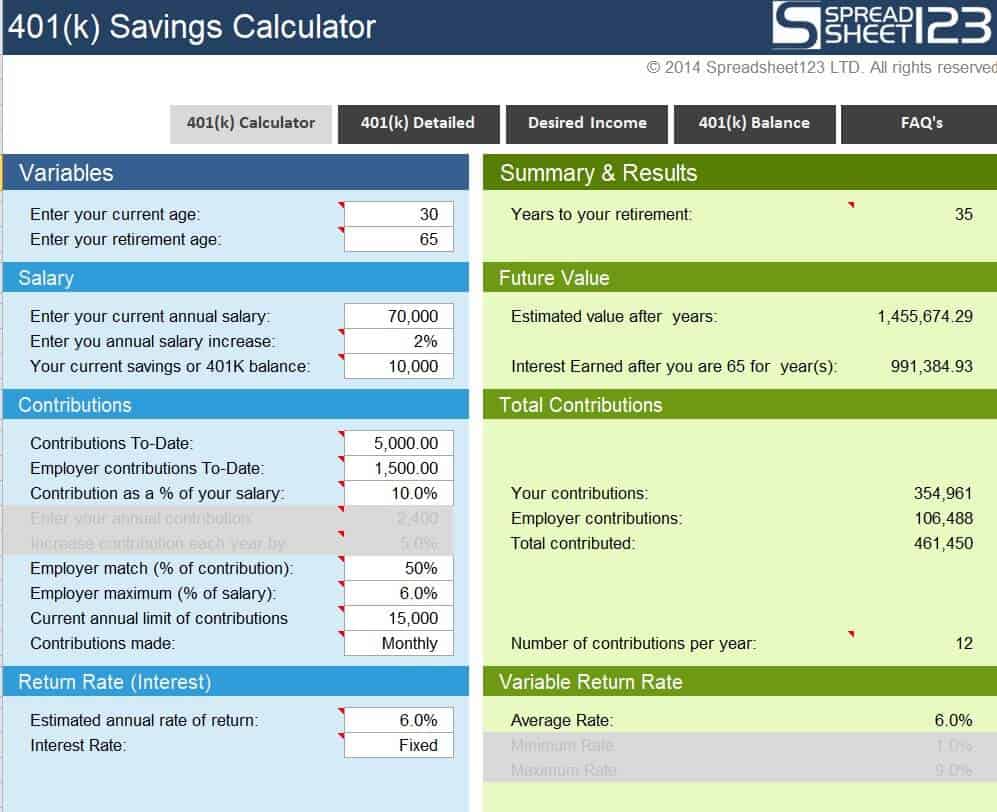
Example 401k Contribution Calculator Template
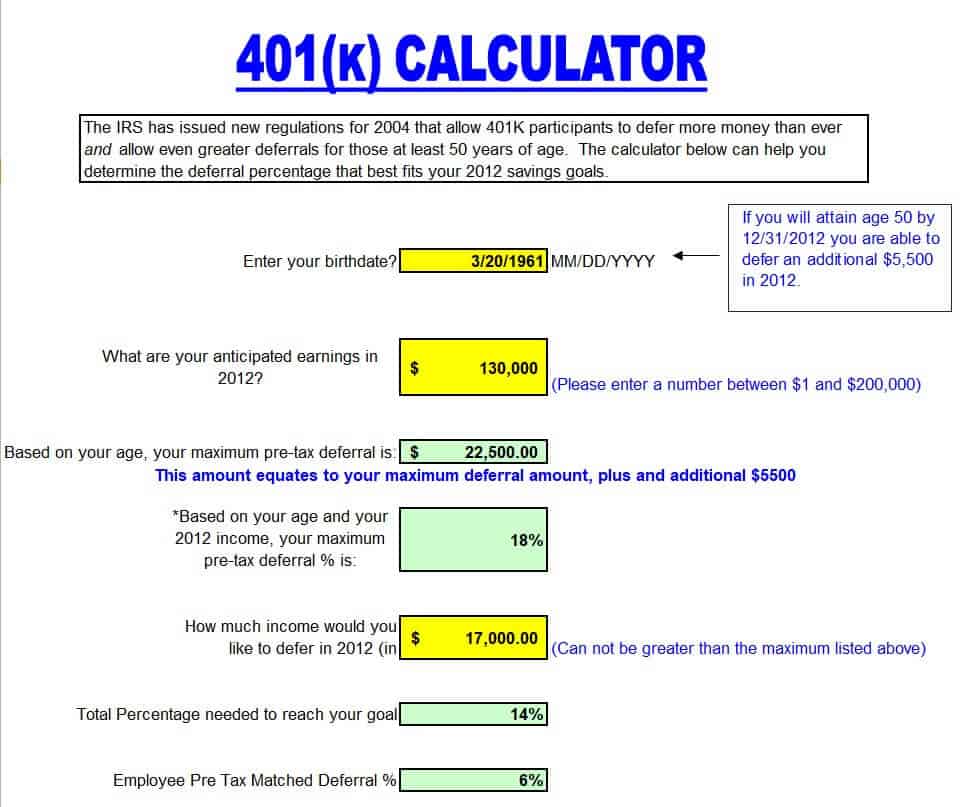
How to use the 401(k) contribution calculator
Step 1. Enter eligible pay and the employee contribution rate or amount. Place retirement saving within financial plan templates.
Step 2. Apply the actual employer matching terms and any relevant caps. Review the effect on available spending with budget worksheets.
Step 3. Compare the estimate with payroll records and update assumptions when pay or plan rules change.
Check the definition of eligible compensation before applying a percentage. A plan’s treatment of bonuses or other pay may differ from the salary figure entered in a simple model. Also distinguish an estimated employer match from an amount already deposited to the account.
Review pay frequency and year-to-date contributions so a per-pay-period estimate fits the annual picture. A change in contribution rate late in the year can affect the remaining deductions. Use current plan information and official guidance rather than leaving last year’s settings unchanged.
Example and checks
At 2,000 of eligible pay per period, a 5% employee contribution is 100. The employer contribution is calculated separately under the plan’s formula.
A calculator does not establish contribution eligibility or replace plan documents. Traditional and Roth contributions have different tax treatment, and rules can change. Track accumulated assets using personal financial statements.
For the relevant U.S. requirements or method, consult the IRS retirement contribution guidance.
Understand what a contribution calculator can estimate
A 401(k) contribution calculator organizes assumptions about eligible pay, employee deferrals, and any employer contribution covered by the model. It can help explain a payroll scenario, compare contribution rates, or check whether a planned deduction is being calculated as expected. It does not establish the terms of a retirement plan. Begin with the current plan information and identify which question the worksheet needs to answer. Estimating a deduction from the next paycheck is a different task from projecting a retirement account balance several decades into the future.
Check the scope of the selected file before entering numbers. Some worksheets calculate only employee contributions, while others include employer matching or growth assumptions. A label such as ‘retirement calculator’ does not prove that all those features are present. Inspect the input fields and formulas, and test a small example independently. Keep any estimate separate from amounts actually deposited. A contribution scheduled through payroll, a contribution withheld, and money received by the account can refer to different stages in the process.
Enter eligible compensation and pay frequency correctly
The pay figure used by a plan may differ from the employee’s headline annual salary. The treatment of bonuses, commissions, or other compensation depends on the relevant plan provisions. Use the appropriate definition when modeling a contribution percentage. Record whether the input is annual pay or pay for one period. Applying a rate to an annual figure and then treating the result as a per-paycheck amount would create a substantial error. Clear labels make those distinctions easier for anyone reviewing the worksheet.
Pay frequency also matters. Monthly, twice-monthly, and every-two-weeks payroll schedules do not have the same number of pay periods. Use the schedule that actually applies and check the remaining periods when making a change partway through the year. An annualized estimate can be useful for comparison, but it should not obscure deductions already made. Keep year-to-date employee contributions in a separate input so the calculator can distinguish the amount already contributed from the amount being proposed for future payroll periods.
Keep employee and employer contributions separate
An employee deferral is different from an employer contribution. A matching formula may relate the employer amount to what the employee contributes, subject to the plan’s stated limits and conditions. Other employer contribution arrangements can work differently. Read the actual terms rather than assuming that every employer matches a standard percentage. Use separate rows or columns for each source of contribution so totals remain understandable. This separation also helps when comparing a modeled amount with a pay statement or an account transaction history.
Consider a purely illustrative match of half the employee contribution up to a specified share of eligible pay. The calculation needs both the matching rate and the pay threshold; applying the rate to every amount contributed could overstate the result. The plan may also have timing, eligibility, or other provisions that a basic spreadsheet does not model. State those limitations in the working assumptions. A calculator can show the arithmetic of a defined example, but it cannot substitute a generic formula for the provisions of a particular plan.
Model contribution changes across the year
When a contribution rate changes, divide the estimate into the periods affected. Earlier payroll deductions remain part of the year’s total, while the new rate applies according to payroll implementation and plan rules. Keep the effective date visible and check whether a requested change has actually taken effect. Do not assume that editing a spreadsheet changes payroll elections. The workbook is a planning and checking tool; the plan’s required election process remains separate.
Suppose an employee has already contributed 1,200 and plans to contribute 150 for each of eight remaining pay periods. The additional employee contributions would total 1,200, producing an estimated employee total of 2,400 before any other relevant adjustments. Employer contributions should be calculated separately. This example contains no statement about applicable annual limits or eligibility. It demonstrates why a year-to-date balance and a remaining-pay-period calculation provide a clearer estimate than multiplying the new per-period deduction by a full year’s payroll count.
Distinguish contribution amounts from take-home pay
A contribution calculator should not imply that every contribution changes take-home pay by an identical amount under every arrangement. Traditional and designated Roth contributions have different tax treatment, and a full payroll estimate may involve other deductions and taxes. Identify whether the worksheet is estimating contributions only or attempting to model a complete paycheck. If it does not include the necessary payroll details, present the result as a contribution amount rather than a precise prediction of net pay.
For budgeting, compare the contribution scenario with actual current payroll information and the employee’s other commitments. Keep the retirement contribution calculation separate from an investment-return projection. An assumed return is not a contribution and is not guaranteed. If a file includes account growth, label the contribution inputs, return assumption, fees, and timing distinctly. Otherwise an attractive projected balance can hide the difference between money expected to be deposited and hypothetical future investment performance.
Review current rules and plan information
Contribution limits, eligibility provisions, and other requirements can change or depend on individual circumstances. Check current official guidance and the plan’s documents rather than copying a limit from an old example. Where the workbook contains year-specific settings, label the applicable year and review them before reuse. Avoid hard-coding the same figure in several formulas. A clearly named assumptions area makes updates easier to inspect and reduces the chance that one part of the calculator uses an obsolete value.
Keep a record of the source used for important plan assumptions and the date it was checked. If a provision is unclear, obtain an explanation through the appropriate plan or payroll channel before relying on the model. A worksheet can still be useful when its limits are explicit. The problem is presenting an incomplete estimate as if it covered every contribution rule and payroll outcome. A careful review should identify which figures are known, which are assumed, and which require confirmation.
Check results against actual records
After a contribution posts, compare the modeled employee amount with the payroll record and compare relevant deposits with the account history. Investigate differences in effective dates, eligible pay, rounding, or the matching calculation. A small difference can be a useful clue to a missing assumption. Do not change the spreadsheet simply to reproduce a number without understanding why the original estimate differed. Keep notes about the explanation so the same issue does not recur at the next review.
Save a clean template and retain dated working copies when they support a decision. Use fictional names and numbers in training or demonstration versions, and protect files containing compensation or account information. Before sharing a result, label the year, pay frequency, employee rate, employer assumptions, and whether the output is a projection or a recorded amount. A well-maintained 401(k) contribution worksheet makes payroll arithmetic easier to understand while leaving plan administration, tax treatment, and investment decisions to the appropriate sources and processes.
Use the calculator for a clearly bounded comparison
Suppose the purpose is to compare two employee contribution rates for the next payroll period. Keep eligible pay, pay frequency, and all other modeled assumptions unchanged. Calculate the employee contribution at each rate and show the difference. Then calculate any employer contribution separately under the stated plan terms. This makes it clear which change comes from the employee election and which comes from the matching assumptions.
Do not add an investment-growth projection merely to make this short-term comparison look more impressive. A payroll contribution question can be answered without predicting future market returns. If the person also wants a longer-term projection, prepare a separate view with its own assumptions and limitations.
After choosing a scenario, retain the worksheet as a planning reference and use the required plan process for any actual election. Check the later payroll record to confirm the implemented amount. The completed comparison should identify its date and input assumptions so it is not mistaken for a standing instruction or a guarantee about future deductions.
Frequently asked questions
Is an employer match automatic in every plan?
No. Matching contributions depend on the plan’s terms.
Can I reuse an old calculator?
Only after checking the year, limits, formulas, and current plan provisions.

You must be logged in to post a comment.