
An Excel budget worksheet compares expected income and spending with actual results. It helps you make allocation decisions before money is committed and review differences afterward.
Choose personal, household, or business categories that match the plan. Include a period, currency, planned amounts, actual amounts, and a clear variance convention.
Template previews and downloads
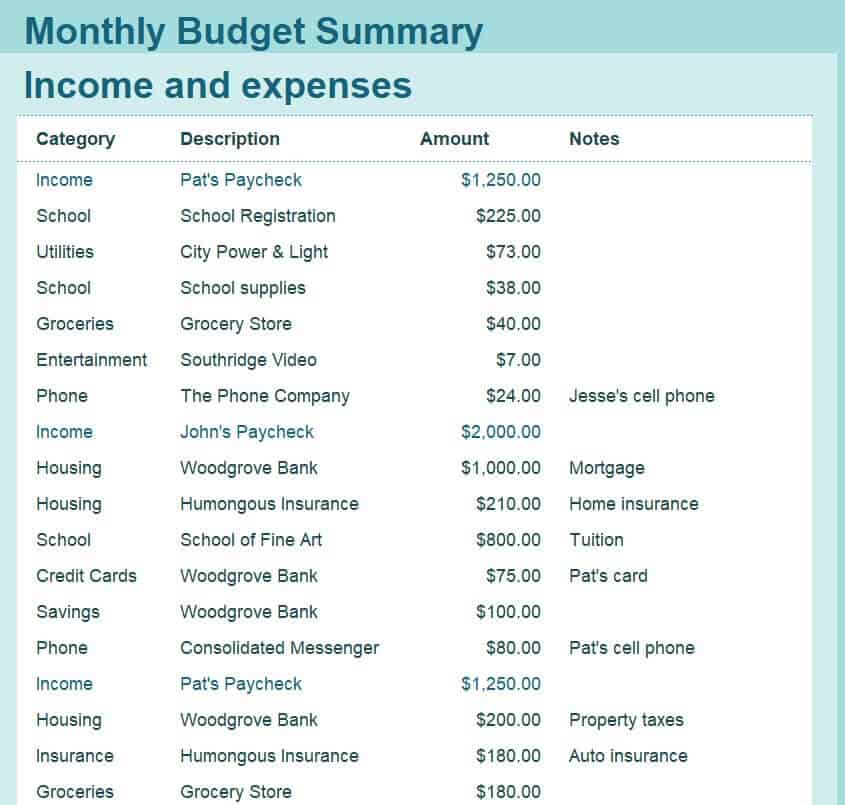
Monthly Budget Summary Worksheet Template
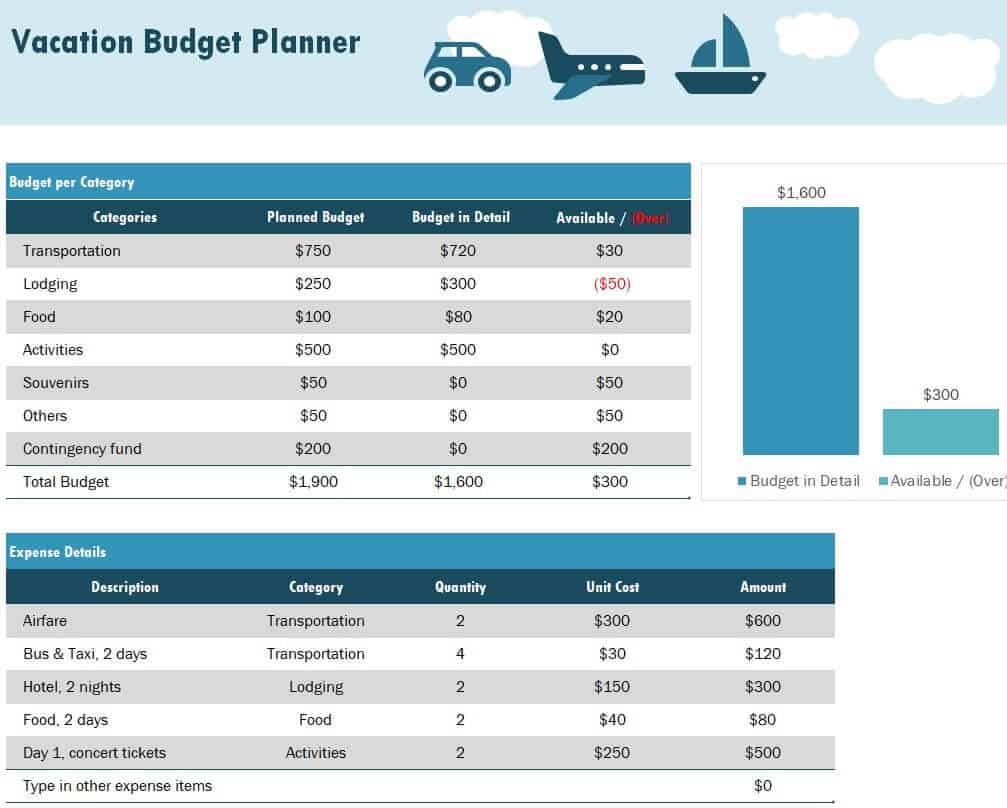
Vacation Budget Planner Worksheet Template
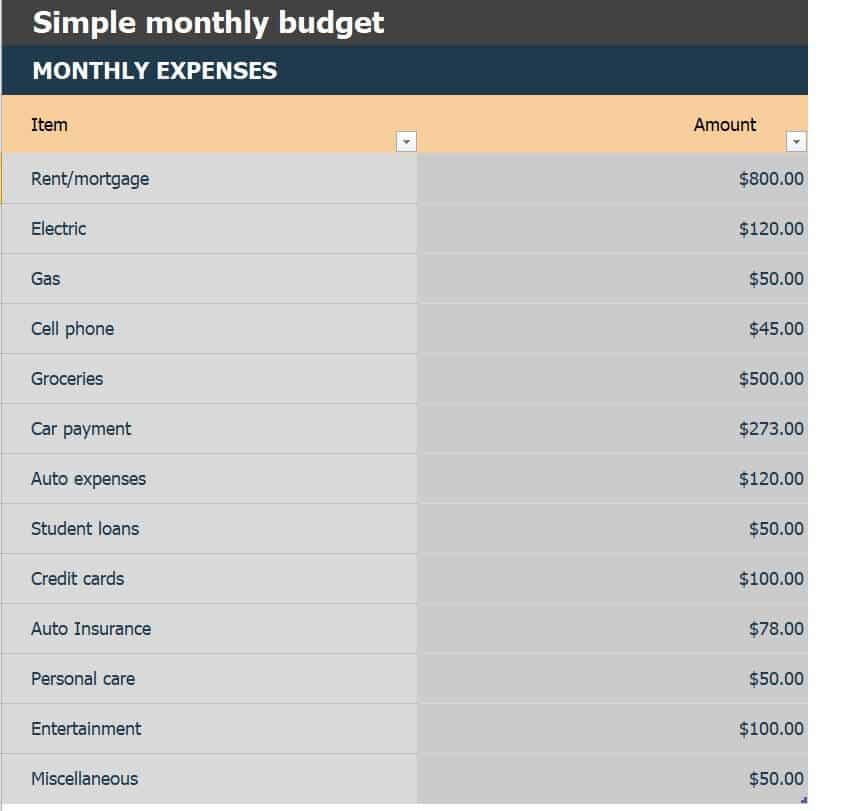
Simple Monthly Budget Worksheet Template
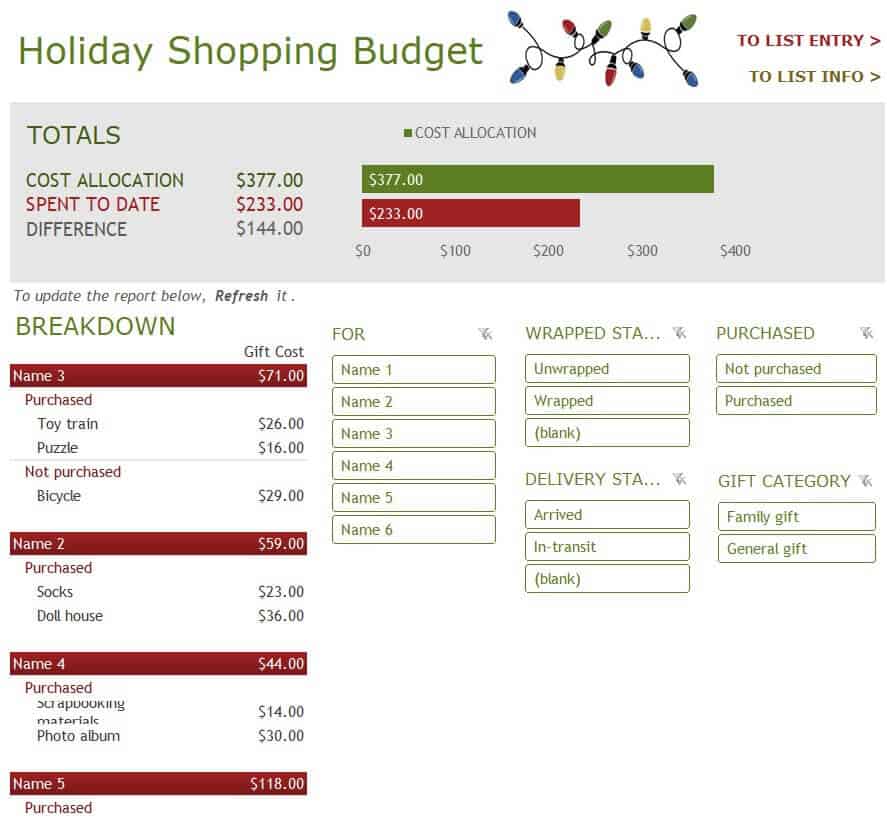
Holiday Shopping Budget Worksheet Excel Template
Sample Garden and Landscaping Budget Worksheet Template
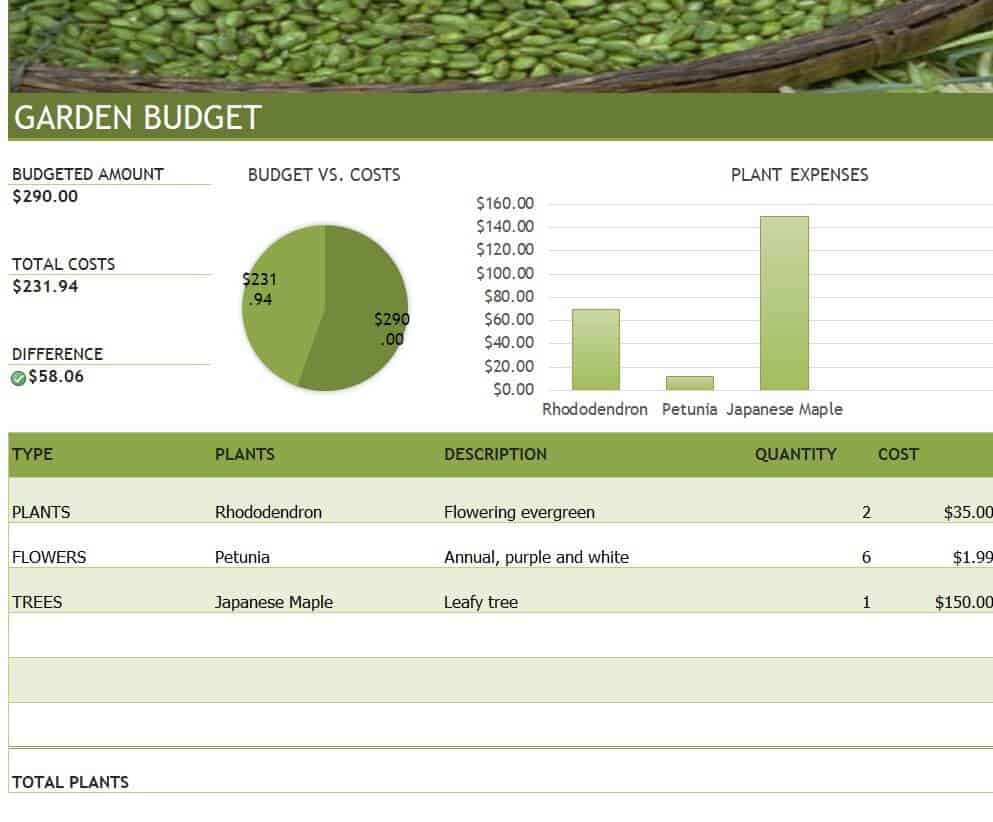
Budget Worksheet Template for Home Construction
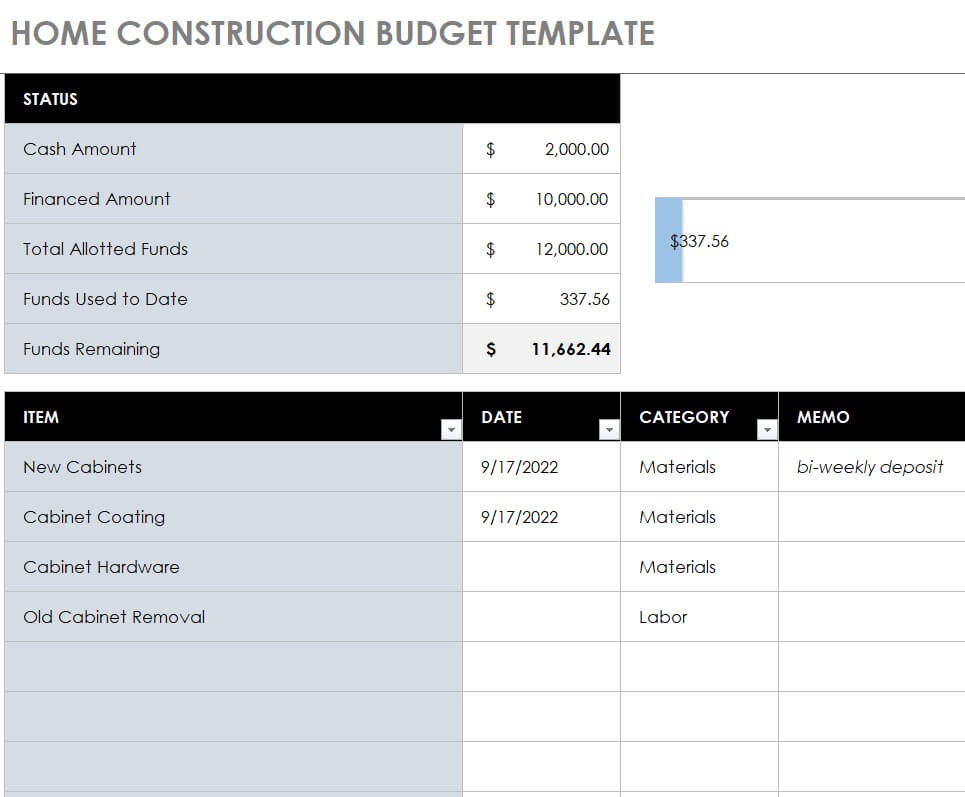
Free Printable Personal Budget Worksheet Template
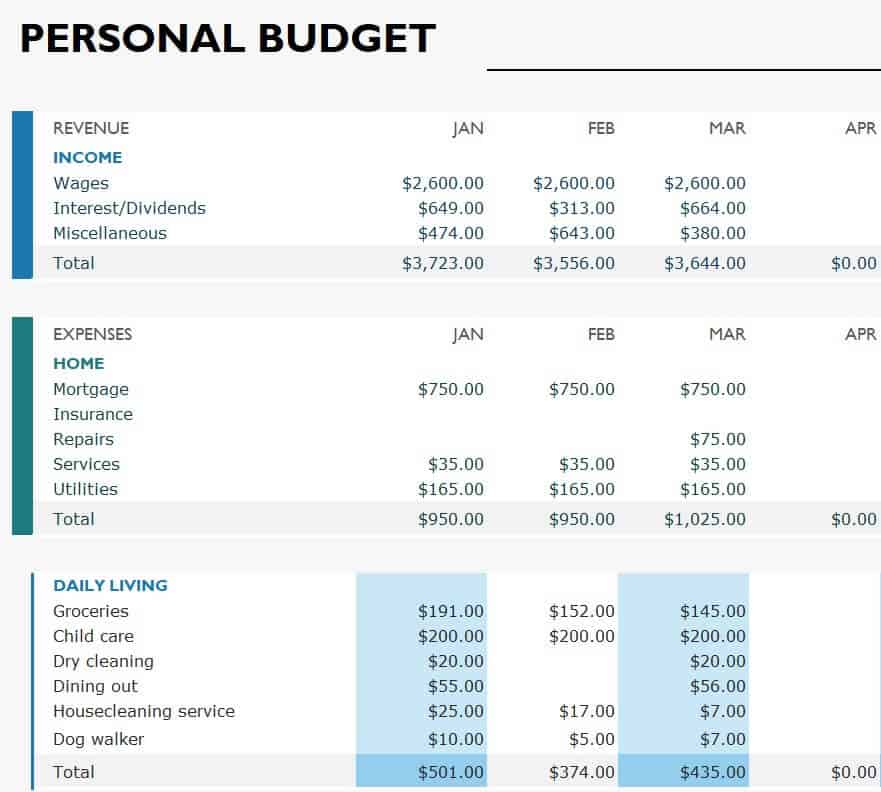
Basic Household Budget Worksheet Template
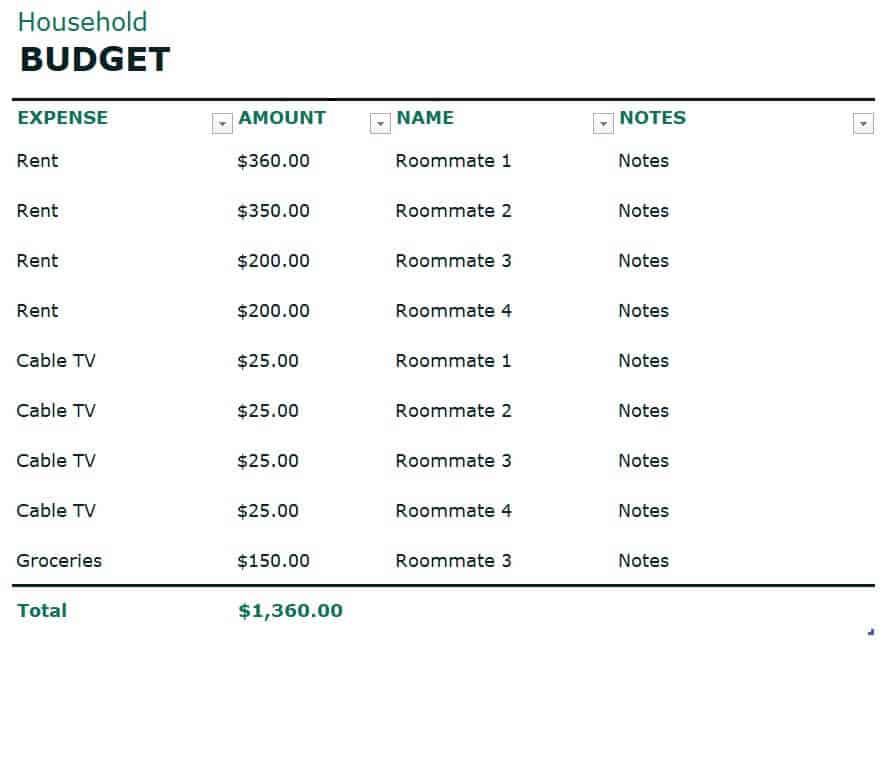
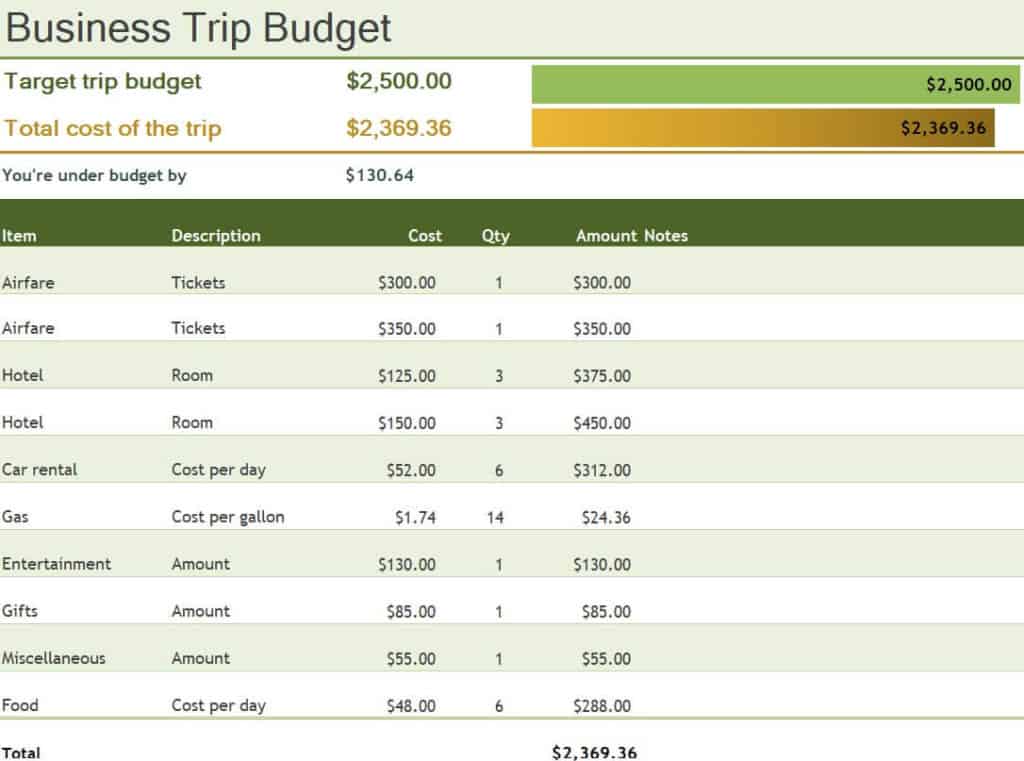
Official Business Trip Budget Worksheet Template
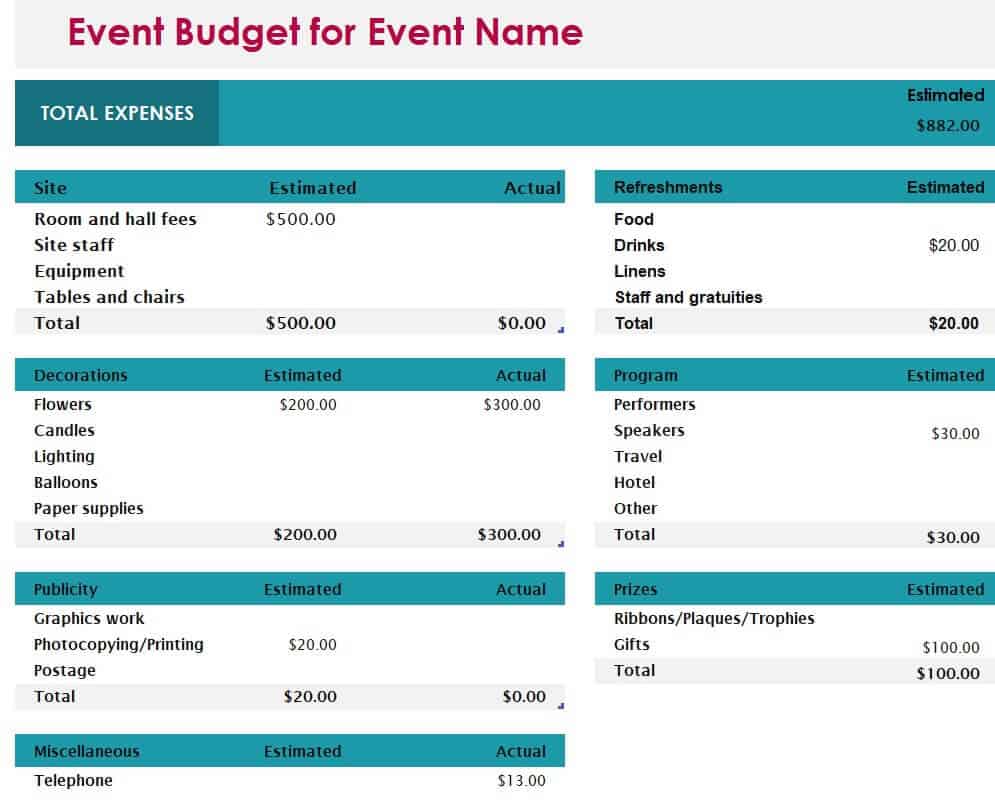
Event Budget Worksheet Template
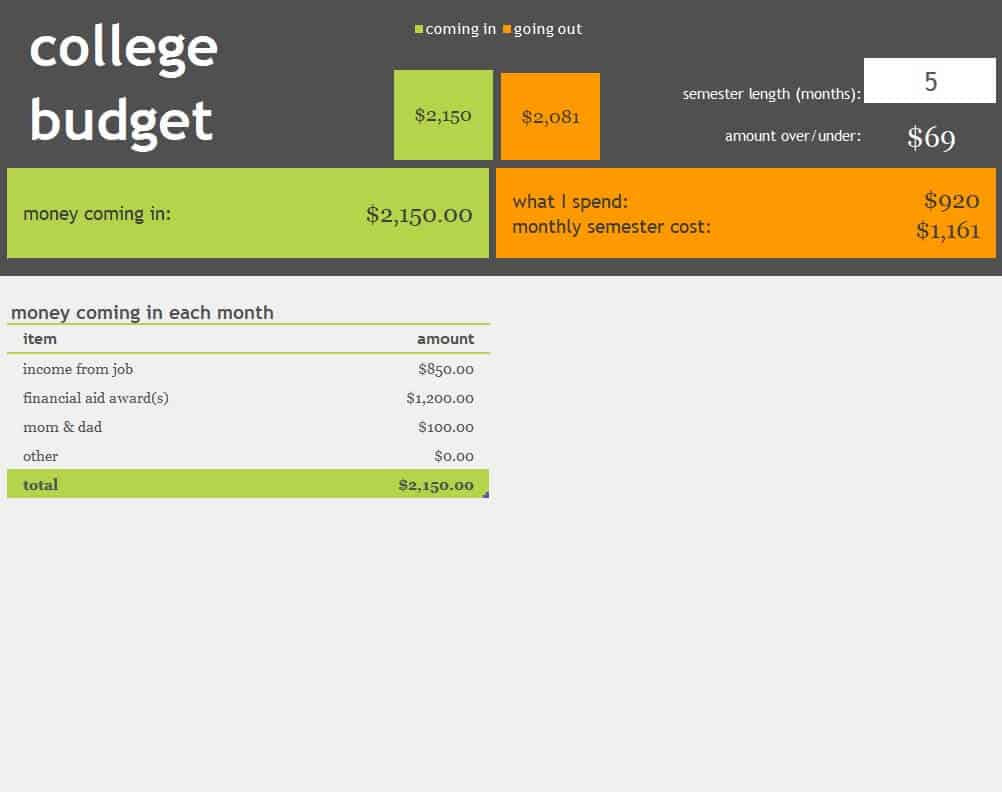
Editable College Budget Worksheet Template
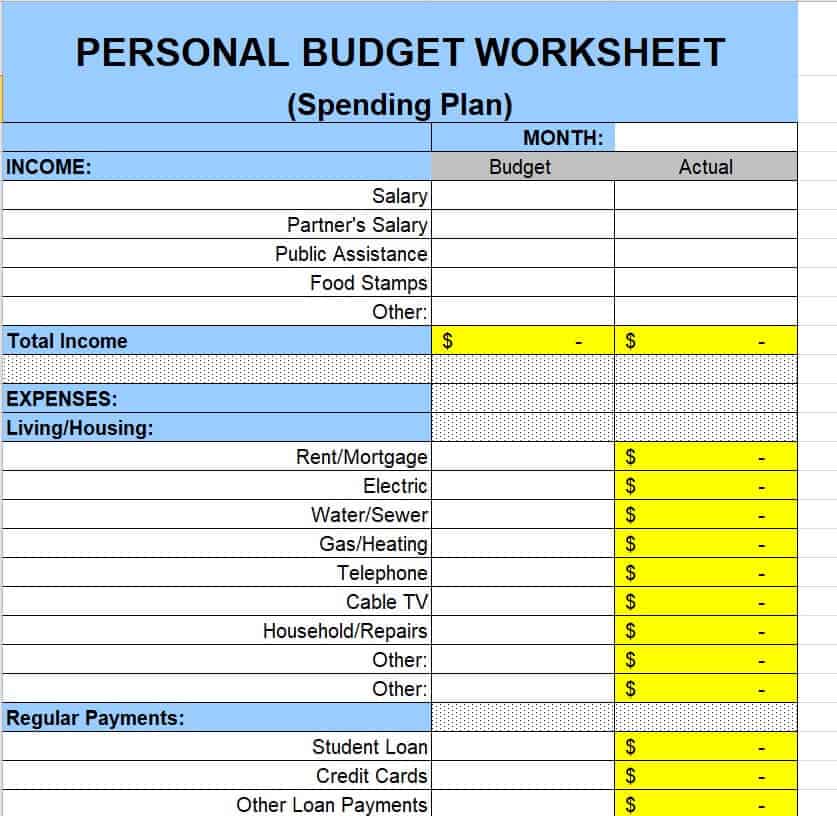
Free Online Personal Budget Worksheet Template
Excel Personal Budget Worksheet Template
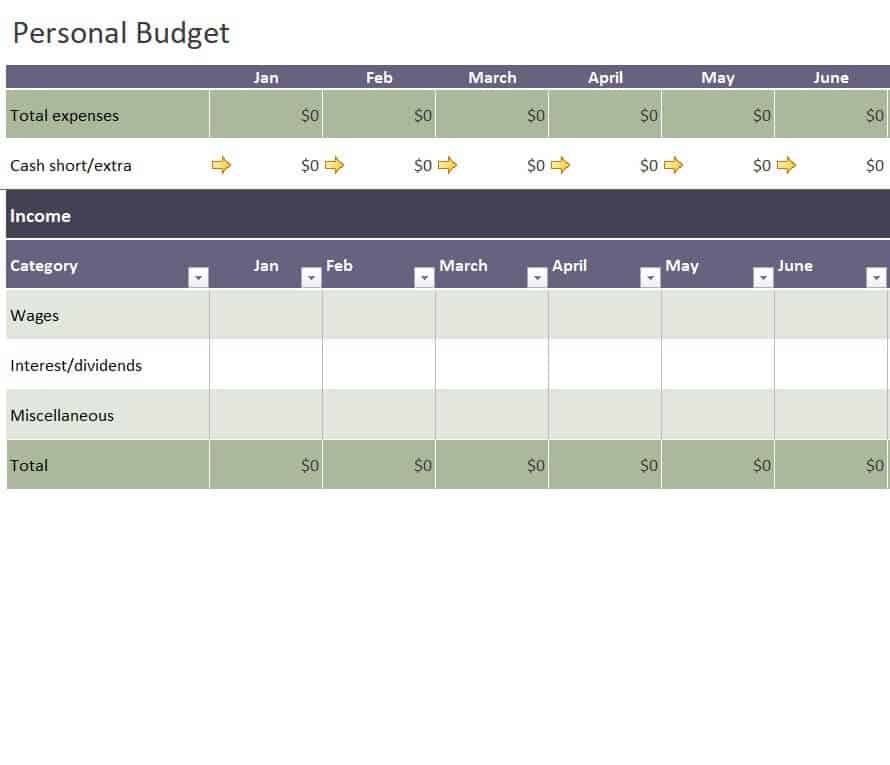
Excel Wedding Budget Worksheet Template
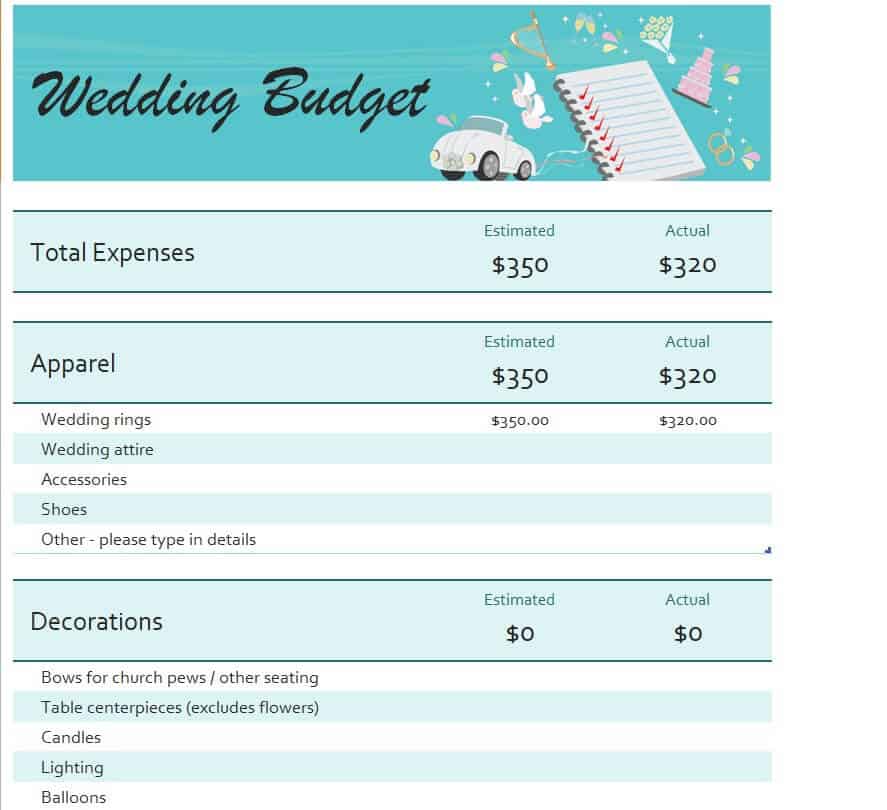
Example Channel Marketing Budget Worksheet Template
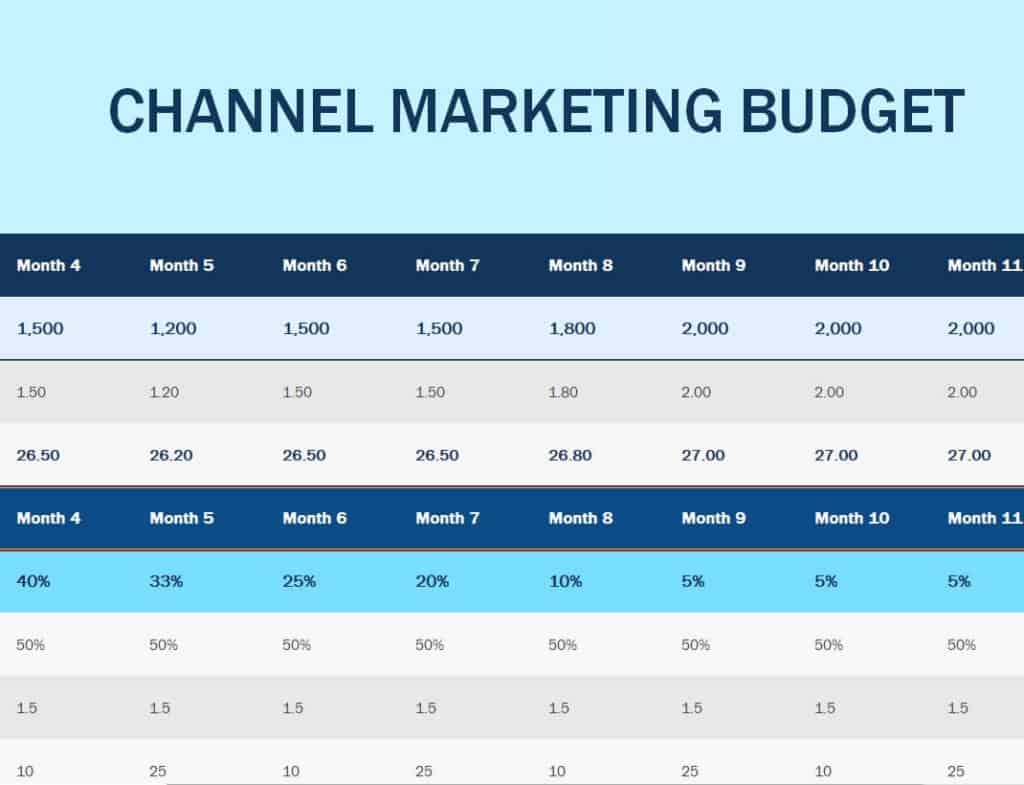
Practical Project Budget Worksheet Template in XLSX Format
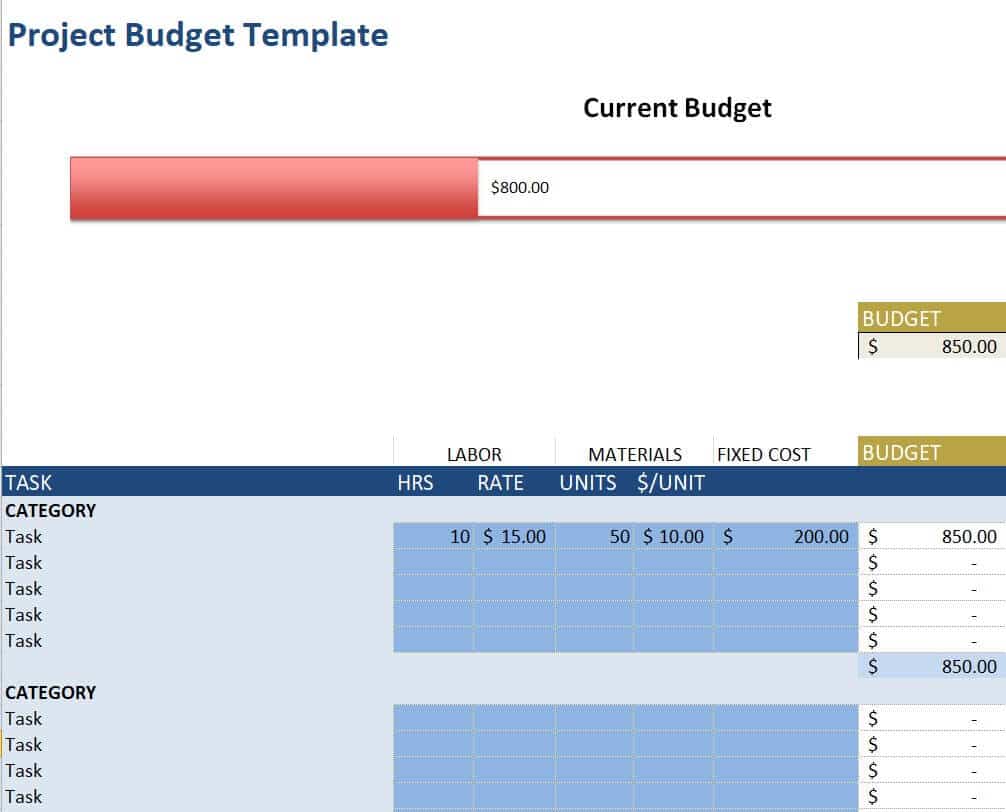
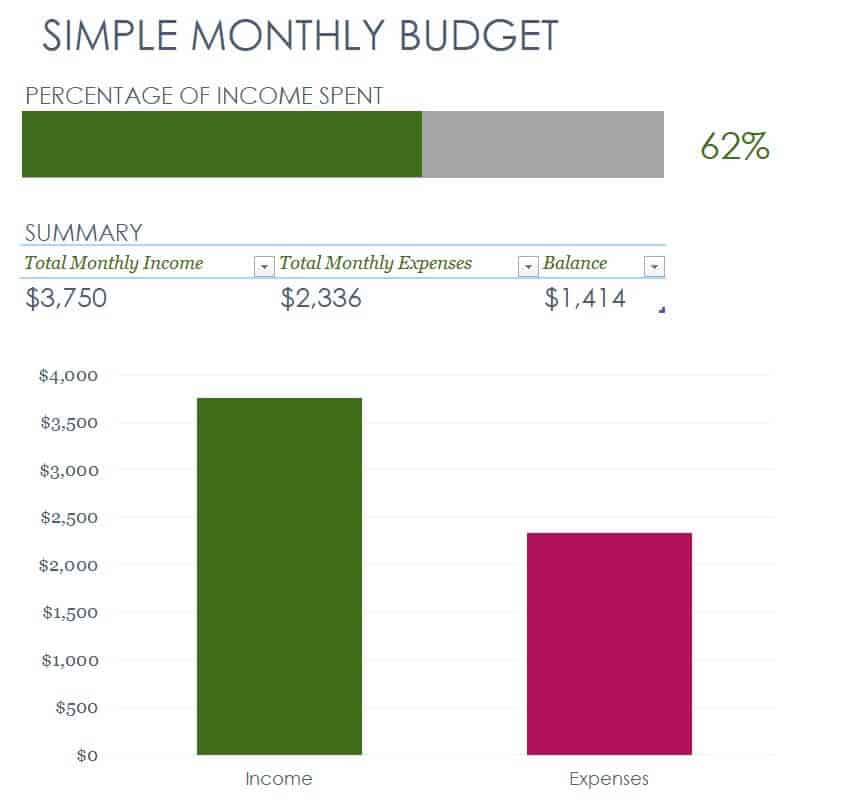
Simple Monthly Budget Worksheet Template
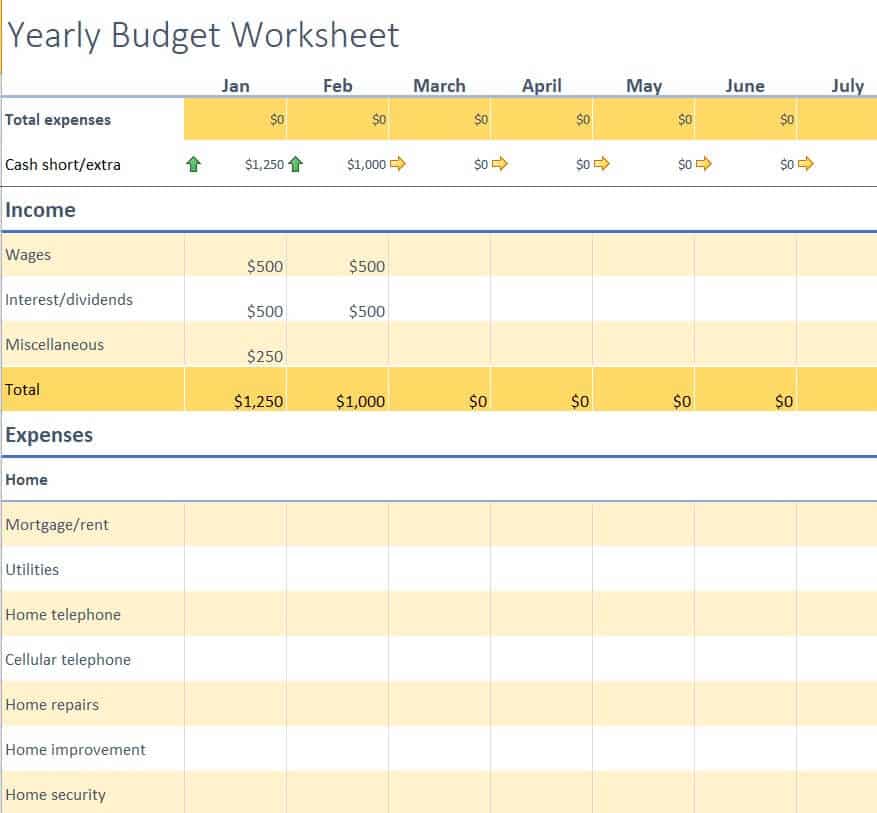
Excel Annual Budget Worksheet Template
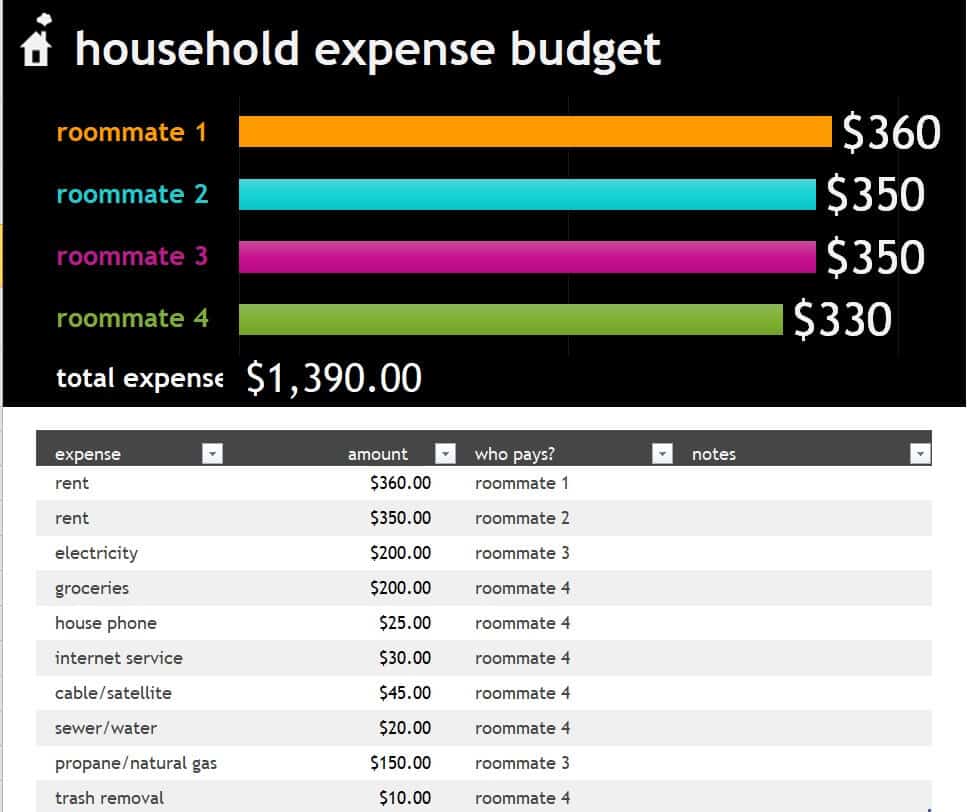
Household Expenses Budget Worksheet Template
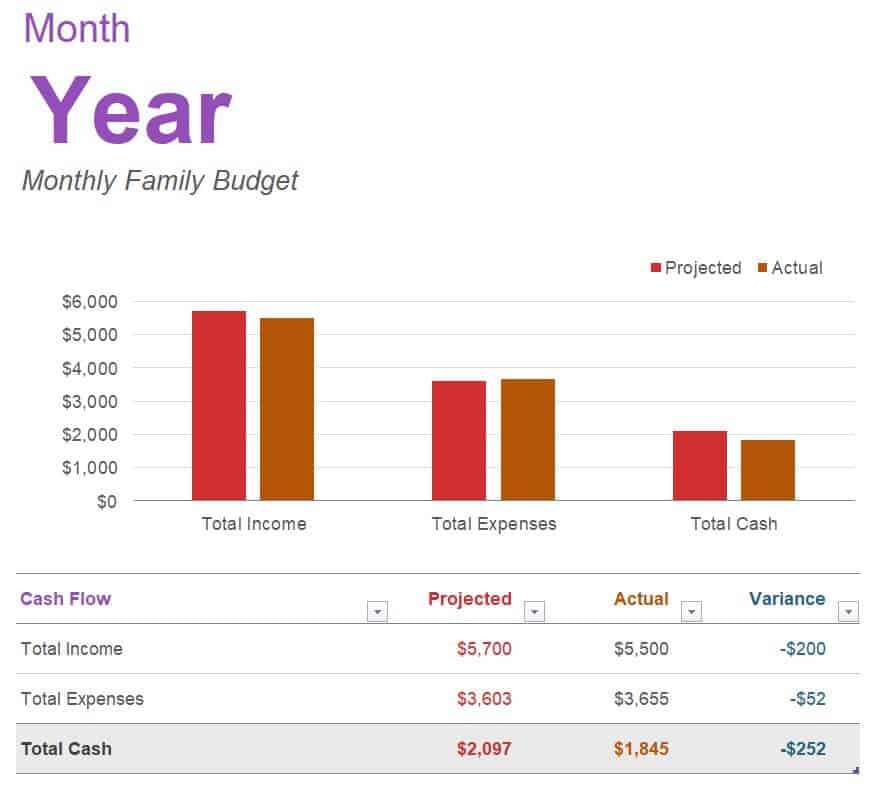
Official Monthly Family Budget Worksheet Template
How to use the Excel budget worksheet
Step 1. Enter realistic income assumptions and committed expenses. Coordinate shared family costs with household budget spreadsheets.
Step 2. Allocate variable spending, savings, and irregular costs. Manage daily allowances using daily budget templates.
Step 3. Compare actual results with the plan and explain significant differences.
Give variable and fixed costs different treatment. A fixed bill can be entered from its known amount, while groceries or materials may need an estimate informed by recent records. Irregular costs should have a visible reserve rather than being treated as surprises every time.
Review a variance before changing the budget. An overspend might be temporary, a genuine cost increase, a duplicated entry, or a category mistake. The purpose of the worksheet is to support a decision, not merely to make every actual figure match the original plan.
Example and checks
If planned spending is 500 and actual spending is 560, the overspend is 60. Label whether your variance formula displays overspending as positive or negative.
A budget is a plan, not a bank reconciliation. Check actual balances and payment dates separately. Connect the budget to longer-term goals through financial plan templates.
Choose the budget’s purpose and period
A budget worksheet should identify what is being planned and for whom. Personal spending, a household, a business activity, and a project can need different categories and assumptions. Choose the template according to the question you need to answer. A monthly spending plan may need income dates and bill commitments, while a project budget may need quantities, unit costs, and approvals. Do not combine unrelated purposes simply because one workbook contains several attractive sheets.
Set the period, currency, and owner clearly. If the budget covers a year, decide whether monthly or quarterly detail is needed to understand timing. A total for the year can hide a difficult month. If several people contribute, agree how records will be entered and who maintains the current version. The budget should provide a shared basis for decisions rather than several inconsistent lists that happen to use the same category names.
Build categories from actual commitments
Start with known commitments and recent records rather than an idealized list of what spending ought to be. Include fixed items, variable categories, and irregular costs relevant to the plan. A recurring bill and an occasional repair need different estimation methods. Record the source or reasoning for important amounts. An unexplained figure copied from a sample is harder to update and may make the plan appear affordable only because it does not reflect real obligations.
Keep categories useful and manageable. A very broad other category can hide important activity, while a separate category for every small purchase can make entry inconsistent. Choose the level of detail that supports the decisions being made. If categories change, document the change and consider the effect on comparisons. A movement between headings should not be mistaken for a genuine saving or increase. Use supporting detail where needed without making the main budget unreadable.
Keep planned, actual, and forecast figures distinct
The original budget records the approved or chosen plan. Actual figures record what happened, and a revised forecast reflects the best current estimate of what remains. These views can be useful together, but they should not be silently substituted for one another. Overwriting the original budget with actual spending removes the basis for understanding differences. Keep clearly labeled columns or versions so the reader knows which question each figure answers.
Define the variance calculation. If actual spending of 620 is compared with a budget of 600, the overspend is 20. A worksheet may show that as positive or negative depending on the formula. The label should make the meaning clear. Do not rely only on red and green formatting, which can be misread or disappear in print. A favorable-looking cell also needs context: spending below budget may reflect an unfinished activity rather than a true saving.
Connect the plan to cash timing
Income and expenditure totals do not always show when money becomes available. Enter important receipt and payment dates when timing affects the decision. A household may receive income after a major bill is due, and a business may need to pay suppliers before customers settle invoices. A yearly surplus does not automatically prevent a short-term cash shortage. The budget can point to the need for a separate cash view when that detail matters.
Keep transfers and allocations understandable. Moving money between your own accounts should not automatically become new income or a second expense. A saving allocation is a planning choice, while later movement of the same money needs appropriate treatment in the records. Shared purchases also need a method that prevents duplication. If one person records a payment and another records reimbursement, the combined view should distinguish the underlying cost from the internal transfer.
Review differences before changing the plan
Use actual results to ask focused questions. A higher amount may reflect a price change, a larger volume of activity, a one-off event, or an entry error. A lower amount can mean a saving, a delay, or a missing record. Investigate the important differences rather than automatically adjusting every budget line until it matches. The aim is an informed decision about what should happen next, not a worksheet with no visible variances.
Record approved changes and the reasoning behind them. If an expected cost is now unavoidable, the plan may need a different allocation or timing. If an activity is canceled, related commitments and refunds may need review. Keep the revised view internally consistent. Changing one category without considering the total can make the plan appear balanced while creating a funding gap elsewhere. A short review note can explain the decision without turning the worksheet into a long report.
Test formulas and protect the working structure
Check totals and links after adding categories, periods, or rows. A formula may stop at an old range or include a subtotal twice. Test a small known example and verify that the summary agrees with the detail. If charts are used, confirm the source range and labels. A visually clear dashboard can still omit new records. Distinguish editable assumptions from calculated cells and avoid treating cell protection as proof that the underlying calculation is correct.
Keep a clean template and retain completed or approved versions when they support later review. A shared workbook needs a clear current master and an agreed updating routine. Use fictional numbers in examples and limit access to sensitive financial information. Before printing, check page breaks, currency labels, and the reporting period. A reliable budget worksheet supports realistic assumptions, consistent records, transparent differences, and regular decisions. Its value comes from the way it is maintained, not the number of formulas or colors it contains.
Use a simple budget decision example
Suppose a monthly plan allocates 900 to fixed commitments, 500 to variable spending, and 200 to a chosen reserve. If reliable available income is 1,500, the proposed allocation exceeds it by 100. The worksheet should show that gap clearly rather than hide it through a balancing entry.
The next decision might involve changing the timing, reducing an optional allocation, or reviewing an income assumption. Each option has a different practical meaning. Record the agreed change and keep the plan consistent across its detail and totals.
During the period, compare actual results with the revised plan and investigate important differences. The purpose is not to make the original arithmetic appear correct at all costs. A useful budget reveals where a decision is needed and provides a clear record of the assumptions and choices behind the current allocation.
Frequently asked questions
1. What is an Excel budget worksheet template?
An Excel budget worksheet template is a pre-designed spreadsheet used to organize income, expenses, savings, and other financial information.
2. What can I track with an Excel budget worksheet?
You can track income, household expenses, bills, groceries, transportation, savings, debt payments, entertainment, and other spending categories.
3. Can I customize an Excel budget template?
Yes. You can add or remove categories, change headings, enter your own amounts, and modify the worksheet according to your budgeting needs.
4. What is a monthly budget worksheet?
A monthly budget worksheet is used to plan and track income and expenses for a specific month. It can help you compare planned spending with actual expenses.
5. Can I use an Excel budget worksheet for family expenses?
Yes. A family budget worksheet can be used to organize household income, bills, groceries, transportation, savings, and other family-related expenses.
6. Is an Excel budget worksheet useful for personal budgeting?
Yes. A personal budget worksheet can help you understand your income and spending and organize your finances in a single spreadsheet.
7. Can I print an Excel budget worksheet?
Yes. After completing and formatting the worksheet, you can print it and keep a physical copy of your budget.
8. Can I reuse the same budget worksheet every month?
Yes. You can save a master copy of the template and create a separate worksheet or copy for each month, making it easier to maintain an ongoing budget record.
Should I include savings?
Show savings allocations explicitly so they are not confused with unassigned spending money.
What if income changes each month?
Use realistic scenarios and keep essential commitments visible before allocating optional spending.

You must be logged in to post a comment.