
A class schedule template organizes subjects, lesson times, teachers, and rooms into a weekly timetable. Use the downloadable layouts below to build a printable schedule that you can update when your classes change.
Choose a time grid if classes meet at fixed hours, or a subject-based layout if you mainly need a daily overview. Check that the week includes every teaching day and leaves enough room for room changes and travel between lessons.
Template previews and downloads
Sample Class Schedule
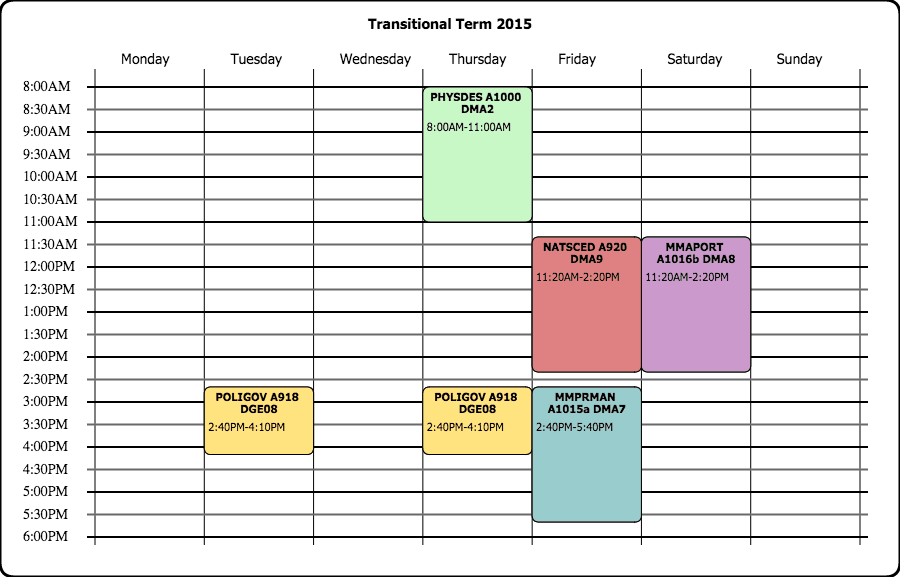

Class Schedule Printable
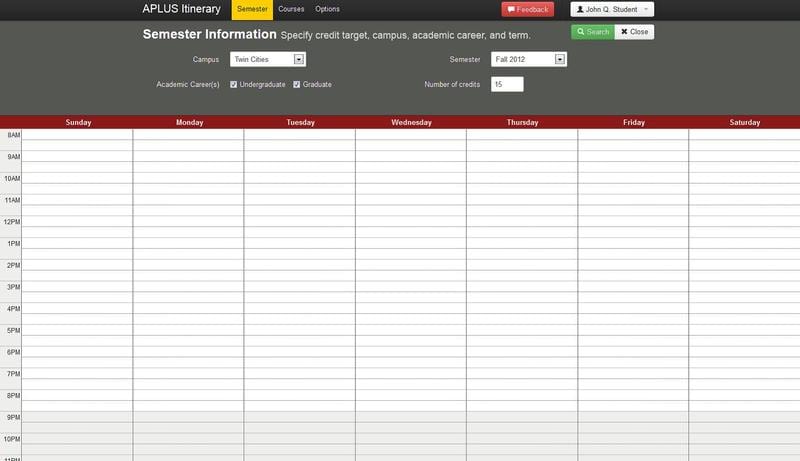
Weekly Class Schedule
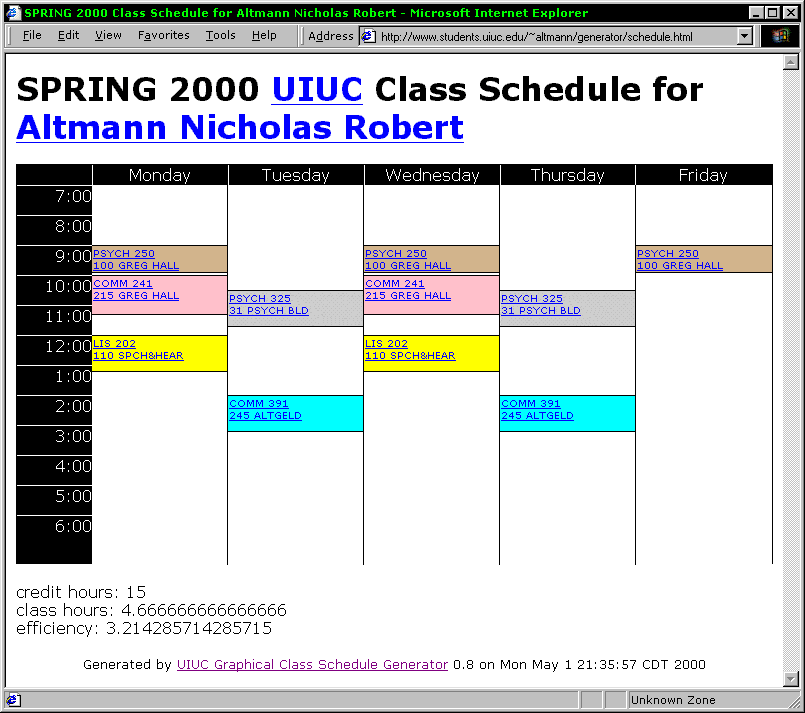
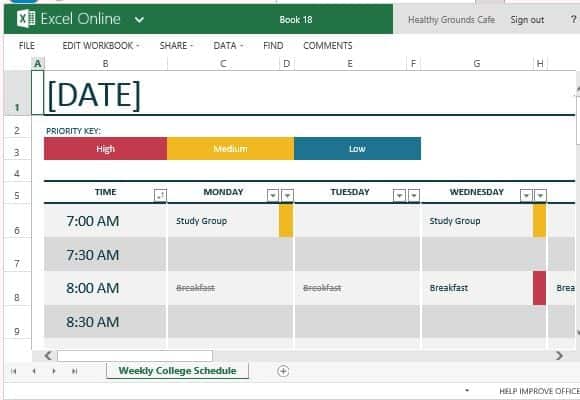
Class Schedule Excel Online
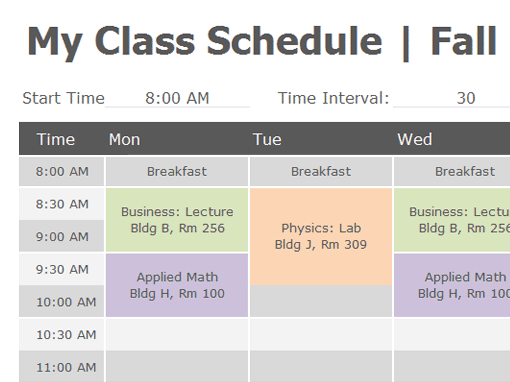
Class Schedule Online Free
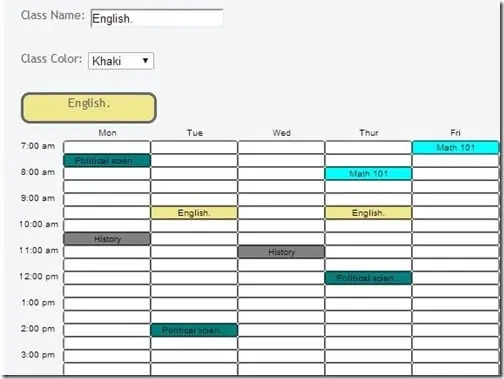
Class Schedule Template Free
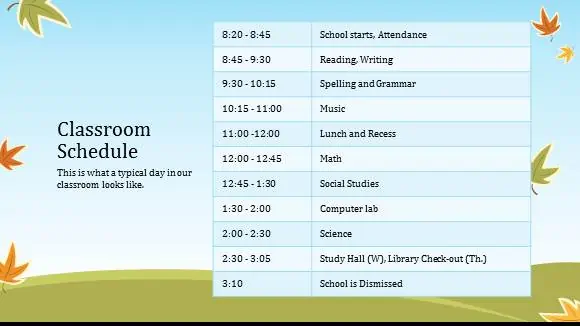
Classroom Schedule Example
Class Schedule Free
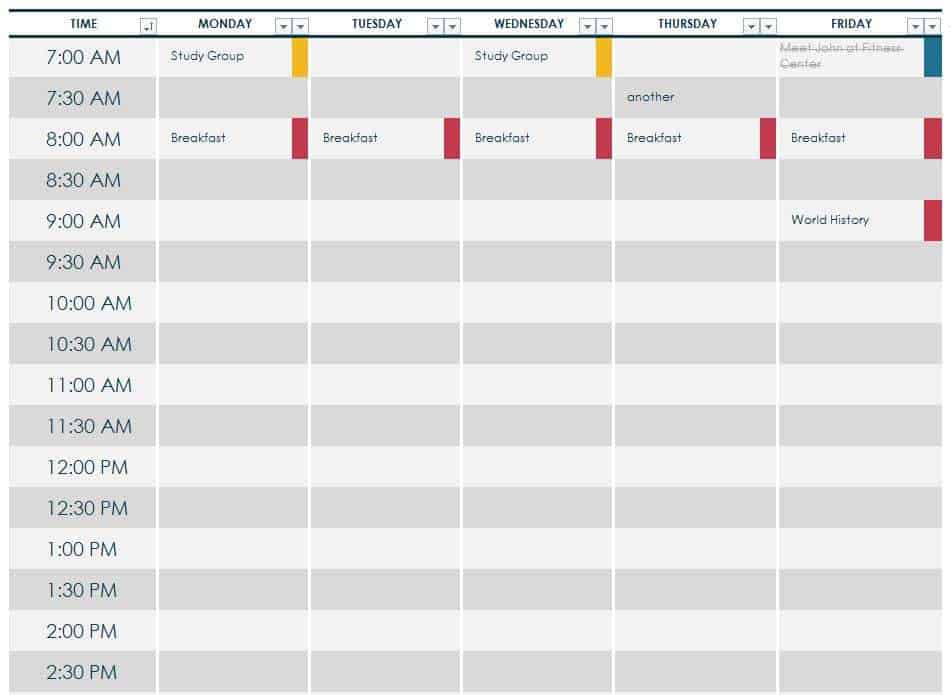
How to use the class schedule template
Step 1. Write the term dates and the start and finish times for each teaching day. Use homework schedule templates to plan assignments around your fixed lessons.
Step 2. Enter fixed classes first, including the subject, teacher, and room. Add breaks and travel time before fitting in study sessions. Use homework calendars when you need a longer view of assignment due dates.
Step 3. Check for overlapping classes, then print a copy and keep an editable master for timetable changes.
For a timetable to be usable, the time intervals must match the real school day. A half-hour grid may not suit 45-minute lessons, so adjust the intervals before adding subjects. Put room identifiers in a separate line or column if long subject names make cells crowded. Use a small number of colors and retain readable text labels for black-and-white printing.
Keep the timetable separate from a homework plan. The timetable tells you where to be; the homework plan tells you what to complete. If teaching arrangements change mid-term, date the new version and remove outdated copies from noticeboards or shared folders.
Example and checks
If mathematics runs from 9:00 to 9:45 and science starts at 10:00, show the 15-minute interval explicitly. An empty interval is useful planning time, rather than another lesson to invent.
A downloadable timetable is a document you fill in; it does not automatically detect room conflicts or generate a school-wide schedule. Preview the print area before sharing it. Turn preparation tasks, such as packing books, into daily checklists.
Choose a timetable structure for the actual teaching pattern
A class schedule should reflect the way classes are organized. Fixed daily periods, varying lesson lengths, rotating weeks, and evening courses require different layouts. Before editing a template, list the teaching days and the start and finish of each period. A grid divided into uniform half-hours may not fit a school that uses forty-five-minute lessons. Adjust the time labels first rather than squeezing real lessons into misleading intervals. The layout should help the student or teacher understand the day quickly.
Decide whether one sheet covers a single class group, an individual student, or a teacher moving between groups. Those views can contain different information. A student may need subject and room details, while a teacher may also need class identifiers and travel between buildings. A school-wide allocation problem usually requires more than a simple personal timetable. The downloadable layouts provide a place to organize information, but they should not be described as automatically solving every room, teacher, and class conflict.
Enter fixed commitments before flexible activities
Begin with confirmed classes and other fixed periods. Add breaks, lunch, assemblies, and relevant travel time so the timetable shows realistic availability. Do not treat every blank interval as spare study time. A gap may be needed to move between rooms, prepare equipment, or meet another commitment. Once the fixed pattern is clear, flexible activities such as independent study can be placed around it. This order reduces the chance of scheduling a study session over a lesson that was already known.
Check recurring exceptions. A timetable that works on most days may need a different arrangement for an early finish, a laboratory session, or a weekly activity. Use clear labels instead of relying on a small color change that may disappear when printed. If the pattern alternates between weeks, create separate labeled views or another structure that makes the applicable week unambiguous. The reader should not need to remember an unwritten rule to know whether a displayed class takes place on a particular date.
Use subject, teacher, and room information consistently
Keep subject names and abbreviations understandable. If several similar courses appear, add the relevant class or course identifier. Use the same room naming convention throughout, especially when buildings have similar room numbers. Long labels may need a second line or a separate key, but avoid shrinking text until it becomes difficult to read. A timetable is often checked quickly between activities, so recognizable labels are more useful than detailed notes packed into every cell.
Teacher and contact information should be included only to the extent useful for the timetable’s audience. A student copy may need a teacher’s name but not private contact details. A staff working copy may include an internal reference or support arrangement. Keep those versions distinct where necessary. When a room or teacher changes, update the current master and identify the effective date. A corrected file is not enough if an older printout remains on the noticeboard and continues to guide students to the wrong place.
Check overlaps and movement between classes
Review each day’s sequence from the reader’s perspective. Check start and finish times, overlapping commitments, room changes, and any period that appears twice. A visually attractive grid can still contain a conflict that becomes obvious only when the day is followed in order. If the schedule is used by several people, confirm shared assumptions such as the meaning of a period number and whether a listed finish time includes transition time. Consistent definitions make the timetable easier to maintain.
Consider a class finishing at 10:15 in one building followed by a lesson starting at 10:15 elsewhere. The absence of a visible overlap does not establish that the arrangement is practical. Review the actual transition needs through the relevant school process. Similarly, an elective that meets on different days may conflict with only part of another course. A personal timetable can reveal the issue, but resolving it may require the institution’s approval rather than simply moving a cell to a more convenient position.
Keep the timetable separate from assignment planning
The class schedule shows when and where teaching commitments occur. A homework calendar shows deadlines, and a homework schedule allocates time to complete work. Keeping these roles distinct helps avoid an overloaded timetable. You can connect the records through subject labels or references without copying every assignment into a class cell. For example, a free period may be reserved for independent study, while the specific task to do during it remains in the current homework plan.
Use the timetable during a weekly review to identify available study periods and busy days. Do not assume that a lighter teaching day has unlimited capacity; travel, activities, rest, and personal responsibilities may also matter. If a class pattern changes, review the study plan affected by that change. The timetable can remain stable for a term while the homework plan changes frequently. This division makes both records easier to read and reduces the need to rebuild the entire class schedule every time a teacher sets a new assignment.
Print, share, and revise the schedule clearly
Save a clean template before entering the current term’s details. Then check the completed schedule at the intended print size. Row heights, text wrapping, margins, and scaling can change how readable it is. Use a limited color scheme and make sure the subject labels still work in black and white. A phone view may need a simpler layout than a wall copy. Test the format the student or teacher will actually use, rather than judging it only on a large computer screen.
Label the current version with the term, relevant group or student, and revision date where useful. Decide who maintains the master and how changes are communicated. When an update is issued, replace outdated shared copies and make the effective date clear. Review the timetable after the first few days of use to find ambiguous labels or missing transition information. A dependable class schedule is one people can read quickly, trust as current, and connect to their other planning records without confusion.
Frequently asked questions
1. What is a class schedule maker?
A class schedule maker is a tool or template used to organize subjects, class times, teachers, rooms, and days into a structured academic timetable.
2. How do I make a class schedule?
Start by listing your subjects and available time periods, then assign each class to a specific day and time. You can also add teacher names, classroom numbers, or other useful information.
3. Can students use a class schedule maker?
Yes. Students can use it to organize their weekly classes and keep track of subjects, periods, and free time.
4. Can teachers create a class schedule with this format?
Yes. Teachers can use a class timetable to organize teaching periods, subjects, classrooms, and other academic responsibilities.
5. What should a class schedule include?
A class schedule may include days, time slots, subject names, teacher names, classroom numbers, breaks, and other relevant academic information.
6. Can I create a weekly class schedule?
Yes. A weekly class schedule can organize classes across multiple days and provide a complete overview of the academic week.
7. Can I print a class schedule?
Yes. A completed class timetable can be printed and displayed in a classroom, study area, planner, or other convenient location.
8. Can I change the class schedule when needed?
Yes. An editable class schedule can be updated whenever subjects, teachers, classrooms, or class times change.
Is this an automatic timetable generator?
These downloadable templates provide a starting layout. Enter and check class times yourself unless a particular file explicitly includes scheduling features.
How should I show alternating weeks?
Keep separate Week A and Week B sheets and label both with their applicable dates.

You must be logged in to post a comment.