
These five free purchase order Excel templates cover everyday product orders, service purchasing, delivery tracking, blanket-order releases, and orders with different item taxes or discounts. Every download is an editable .xlsx file with its own color theme and a layout built around a specific purchasing task. Preview the actual workbook before choosing the version you need.
A clear purchase order helps the buyer and supplier agree what is being ordered, how much it costs, and where or when it should be delivered. It also gives receiving and accounts staff a reference they can compare with delivered goods and the supplier invoice. The most useful form includes enough detail to prevent confusion without filling the page with unused fields.
You can download the files directly without registration. The workbooks contain fictional examples, editable input cells, and formulas for the relevant totals. They contain no macros. Replace the example business names, items, rates, and terms before issuing a real order, and save an approved copy so later changes can be identified.
Choose the purchase order format for your workflow
Use the standard form when you need an itemized order for physical goods. Choose the service version when the purchase is based on hours, deliverables, milestones, or acceptance dates. Use the item-level tax and discount version when a single overall rate would produce the wrong order amount.
The delivery tracker and blanket-order register support the buying process rather than replacing every supplier-facing document. A delivery tracker helps monitor open quantities after an order has been placed. A blanket register tracks releases against an approved spending limit. Keep the original approved order or agreement beside these working records so the operational details can be checked.
Choose and download your Excel template
1. Standard Purchase Order
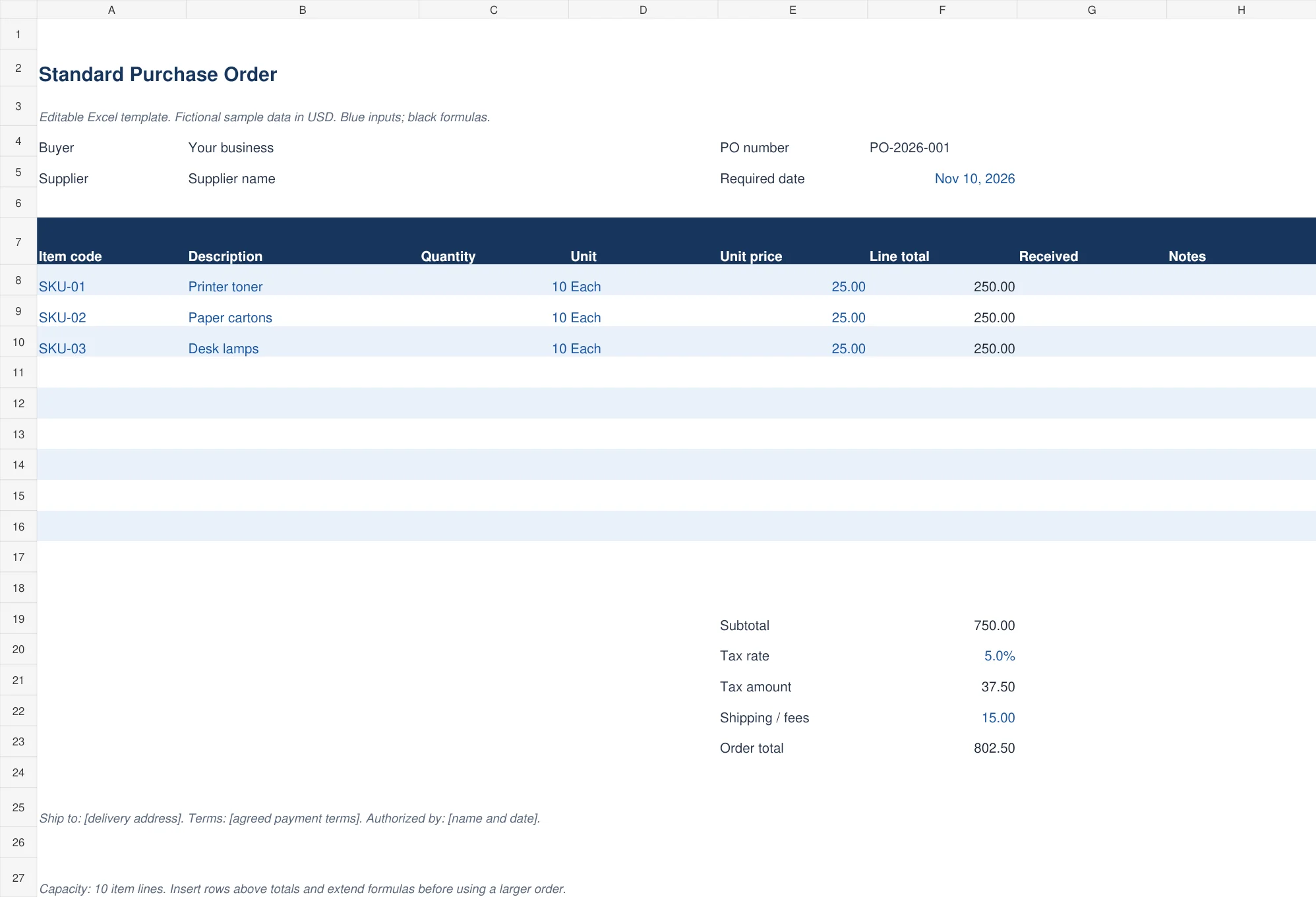
The navy standard purchase order has buyer, supplier, PO number, required date, and ten prepared item lines. Each line records an item code, description, quantity, unit, and unit price. It calculates line totals, subtotal, an example overall tax amount, shipping or fees, and the total order value.
Choose this version for familiar products with one agreed tax treatment. Its received and notes fields can help record a simple delivery check. Before sending it, replace the shipping-address placeholder and specify payment terms and authorization. Use precise units such as box, carton, or piece so the supplier does not interpret the quantity differently.
2. Service Purchase Order
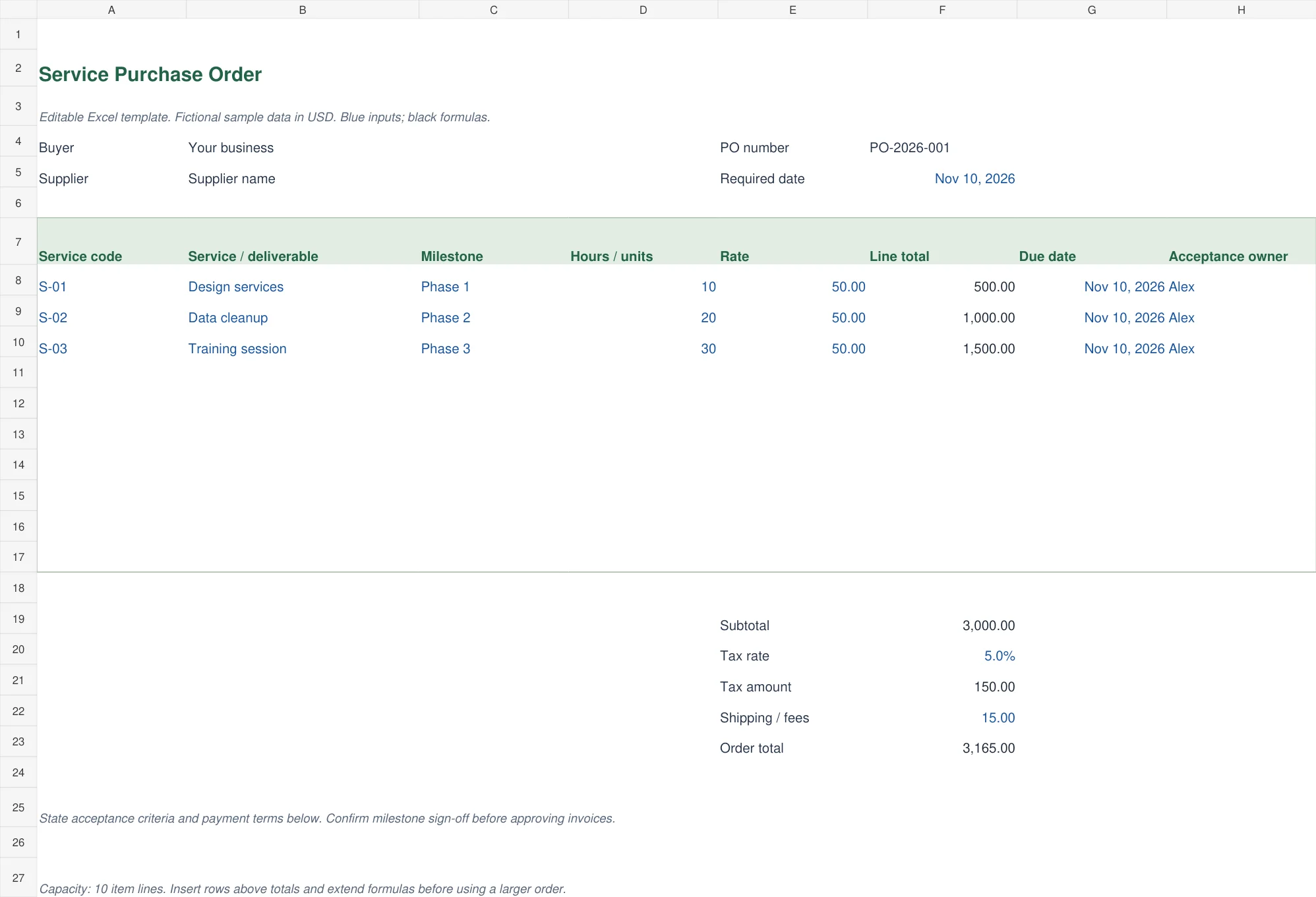
The green minimalist service purchase order replaces stock-focused fields with a service code, deliverable, milestone, hours or units, rate, due date, and acceptance owner. The amount is calculated from hours or units multiplied by the agreed rate. A separate total area includes the example overall tax and additional fees.
Use it for design work, maintenance visits, training, or other defined services. Describe what the supplier must deliver and how the work will be accepted. A milestone name alone is usually insufficient. Add a measurable outcome, supporting scope reference, or completion standard in the service description or agreed supporting document.
3. Purchase Order Delivery Tracker
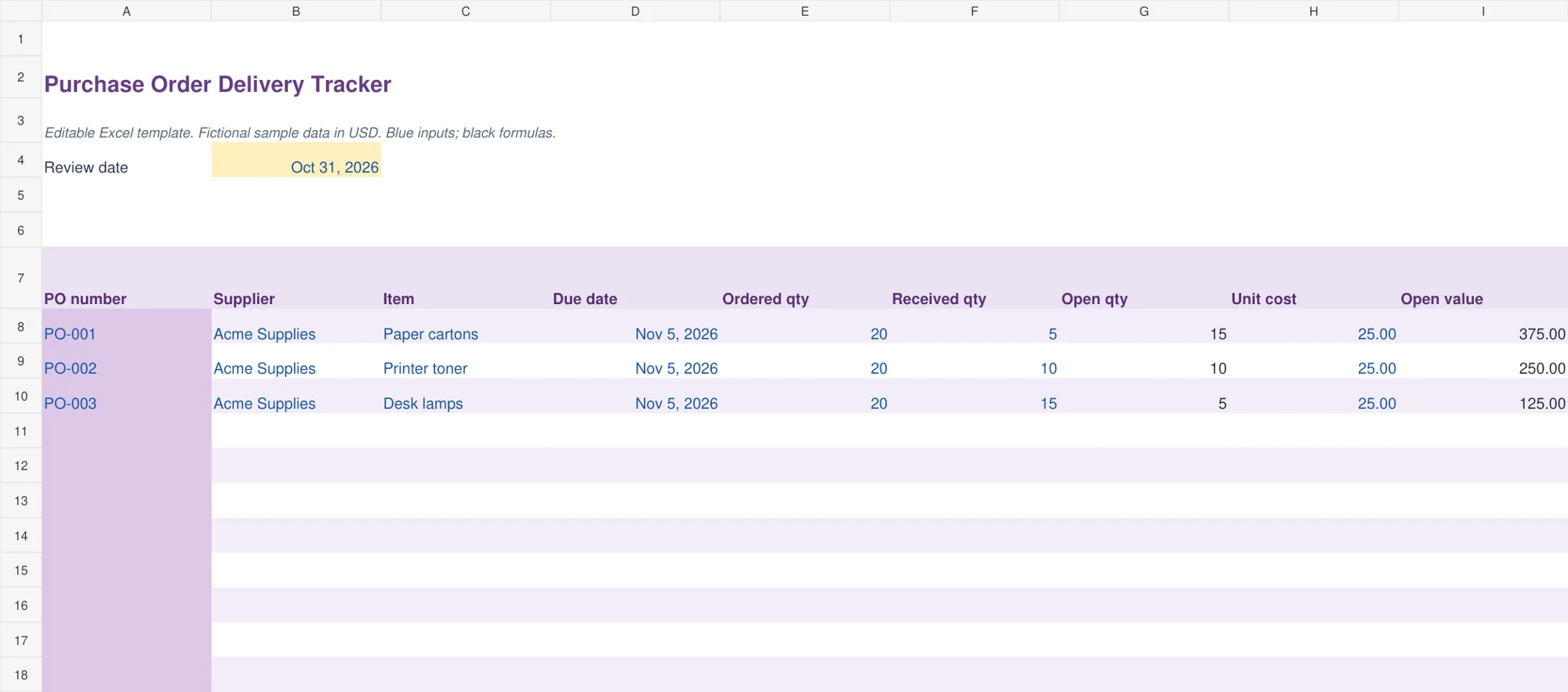
The purple delivery tracker lists PO number, supplier, item, required date, ordered quantity, cumulative received quantity, unit cost, remaining quantity, and open value. Formulas show how much is still expected and the value of those remaining units. It provides fifteen prepared order-line rows.
This version is helpful when one order arrives in several shipments. Update the cumulative received figure using receiving records rather than adding a second copy of the original order line. The open quantity does not go below zero, so review any quantity received above the amount ordered separately. It is a delivery control and does not automatically adjust your stock records.
4. Blanket Order Release Register
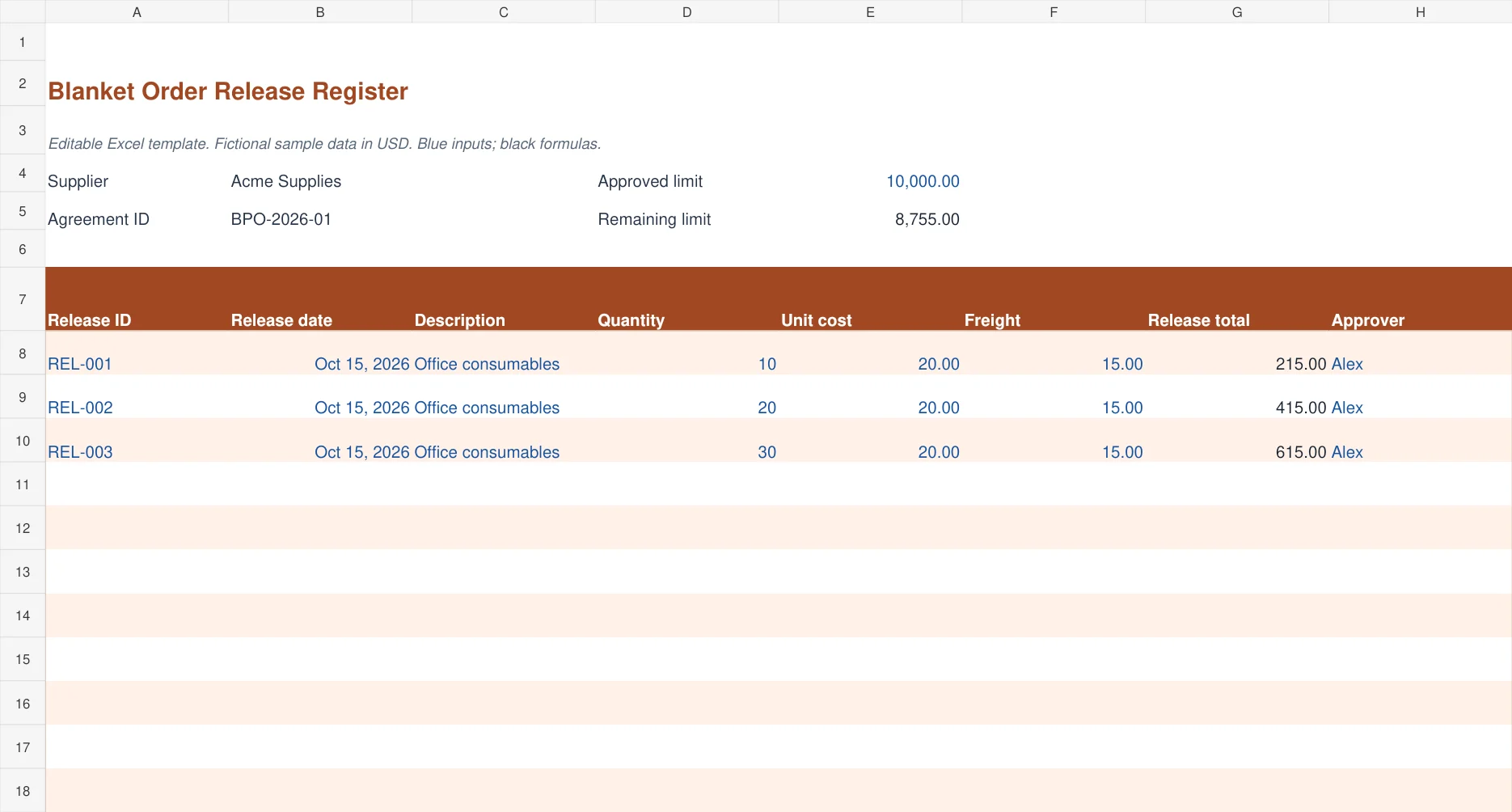
The terracotta blanket-order release register records an agreement ID, supplier, approved limit, and individual releases. Each release has its own ID, date, description, quantity, unit cost, freight, calculated value, and approver. The remaining limit updates as release totals are added.
Choose it for repeat purchases under an agreed buying arrangement. The remaining-limit cell highlights a negative amount so overspending is visible. The workbook does not block a release or grant approval. Specify whether the limit includes taxes and freight in your agreement, then enter each release total on that same basis. Fifteen release rows are prepared.
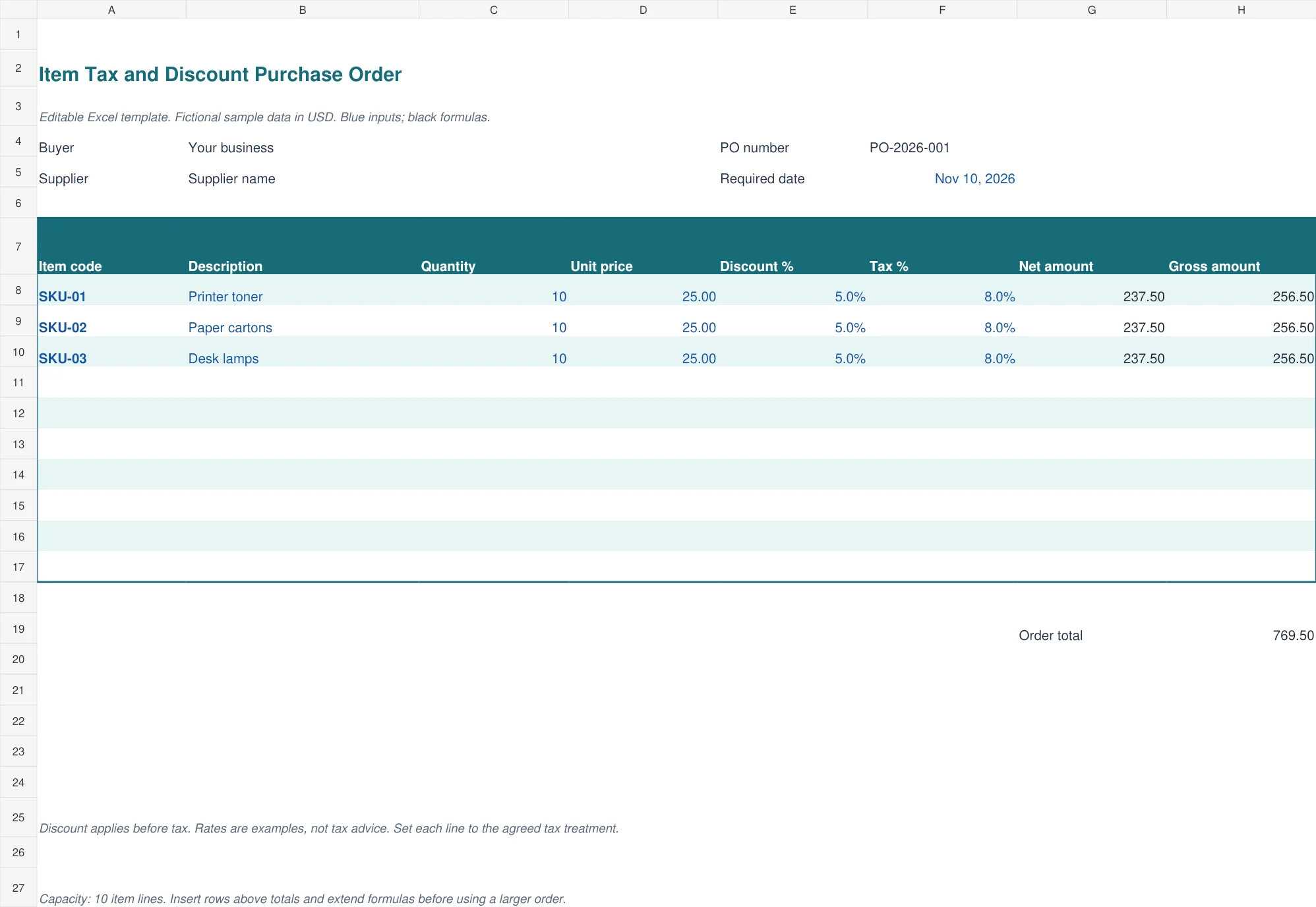
5. Item Tax and Discount Purchase Order
The teal item-level tax and discount order calculates each line separately. Enter quantity, unit price, discount percentage, and tax percentage. The workbook calculates the discounted net amount, then applies the line tax rate to that amount. The order total adds the gross line amounts.
This version is useful when different products have different agreed rates or discounts. For example, ten units at 25 with a five percent discount gives a net amount of 237.50. At an eight percent example tax rate, the gross line is 256.50. Set the rates to the correct treatment for your transaction; the sample rates are illustrative.
What to include on a purchase order
Give every purchase order a unique reference, such as PO-2026-001. Include the buyer’s business details, supplier details, issue date where needed, and required delivery date. The included forms show core fields, and you can add your business address, contact information, or logo in the available space before issuing a final copy.
Describe each product or service so it can be identified without a follow-up call. Item code, product specification, pack size, quantity, unit, and agreed unit price are often useful for goods. For services, state the deliverable, scope reference, rate basis, completion date, and the person responsible for acceptance.
Include the delivery address and any receiving instructions that affect the order. A billing address and a delivery address may differ. Identify the agreed payment terms, tax basis, shipping charges, and any supporting quotation reference. Keep terms consistent with the supplier’s accepted quotation rather than adding conflicting wording in a notes field.
Use your supplier list template to check the supplier name and purchasing contact before sending the order. A stable supplier ID can help distinguish similar business names. Verify changes to payment instructions through your normal supplier-checking process rather than treating the PO as proof of bank details.
How to use the Excel purchase order templates
Download the workbook and save an untouched master. Create a new working copy for the order you are preparing. Replace all sample entries, including the example date, PO number, descriptions, quantities, and rates. Enter numbers as numeric values, and use a percentage format for tax and discount cells.
Check a line calculation manually. Ten items at 25 should produce 250 before adjustments. In the standard version, the example subtotal of 750 plus five percent tax and 15 shipping gives 802.50. This calculation assumes shipping is added after the item tax. If your agreement or local treatment differs, adapt the structure before using the total.
Review the supplier’s quotation against every line. Confirm the unit of measure, price basis, delivery date, and whether tax is included or excluded. Ask the authorized person to approve the completed order using your normal purchasing process. Typing a name into an approver field records information but does not itself establish authorization.
Save the editable Excel copy internally. If you send a PDF to the supplier, inspect the print layout first and make sure all item lines, totals, and terms appear. The standard and service forms have ten prepared lines. Insert additional rows above totals and extend the formulas before using a larger order. The register-style files have fifteen prepared rows.
Purchase order, requisition, invoice, and receipt
A purchase requisition is an internal request to buy something. A purchase order is the buyer’s order sent to the supplier. A supplier invoice requests payment for the supply, and a receiving record shows what was actually delivered. These documents serve different steps and should share references where possible. The CFI purchase order overview explains the role of a PO in the purchasing process.
When goods arrive, compare the delivery with the order and record shortages or damage. When the invoice arrives, check its quantities and rates against the approved order and the receiving evidence. A purchase order total alone is not proof that the supplier delivered everything or that payment is due.
For physical products, update your stock management workbook using the quantities actually accepted. Record the final payable cost in your business expense tracker or accounting system on the appropriate basis. The delivery tracker’s open value is a purchasing estimate, not a complete expense report.
Avoid errors that create supplier disputes
Do not use one PO number for unrelated orders. If an approved order changes, record the revision and tell the supplier which version applies. Keep the old approved copy so the reason for a price or quantity change remains clear.
Watch for pack-size errors. Ordering ten boxes when the quotation is priced per individual unit can change the total substantially. Use the same quantity basis in the order, delivery record, and invoice review. Do not mix currencies in a single order total without an explicit conversion process.
Keep taxes and discounts transparent. The item-level version applies discounts before tax and rounds each calculated line to two decimal places. The standard form applies an overall tax to the item subtotal and adds shipping afterward. These are specific calculation methods, so check that the chosen workbook matches the agreement rather than assuming every order uses identical rules.
Frequently asked questions
Are all five purchase order templates editable?
Yes. The downloads are .xlsx workbooks. You can change input fields, labels, colors, and layout. Keep a backup and check formulas after adding rows or moving calculation cells.
Which file is best for service purchases?
Use the service purchase order. It includes deliverables, milestones, hours or units, rates, due dates, and an acceptance owner instead of relying only on physical product fields.
Can I track partial deliveries?
Yes. The delivery tracker compares ordered quantity with cumulative received quantity for each PO line. Update it from delivery evidence and investigate over-deliveries separately.
Does the blanket-order file stop overspending?
It calculates the remaining approved limit and highlights a negative balance. It does not prevent entries or replace your approval process. Obtain authorization before increasing the limit or issuing a release beyond it.
Can I send the workbook as a PDF?
Yes, using Excel’s PDF export. Review page size, orientation, scaling, and the print area before sending it. Keep the editable workbook and the approved issued copy together for later reference.

You must be logged in to post a comment.